Integrating Invicti Enterprise with Pivotal Tracker
Pivotal Tracker is an issue tracking tool that focuses on software development teams' collaboration around the backlog of stories. It helps software development teams manage projects by breaking them down into small, concrete stories.
This document explains how to configure Invicti Enterprise to send a detected vulnerability to Pivotal Tracker.
For further information, see What Systems Does Invicti Integrate With?.
Pivotal Tracker Fields
This table lists and explains the Pivotal Tracker fields in the New Pivotal Tracker Integration window.
| Field | Description |
|---|---|
| Name | This is the name of the configuration that will be shown elsewhere |
| Mandatory | This section contains fields that must be completed |
| API Token | This is the API Token for the user |
| Project ID | This is the Project Identifier |
| Story Type | This is the issue's story type. The options are: Feature, Chore, Bug, Release |
| Title Format | This is the string format that is used to create the vulnerability title |
| Optional | This section contains optional fields |
| Owner IDs | This is the owner of the issue |
| Labels | This is a comma-separated list of labels |
How to Integrate Invicti Enterprise with Pivotal Tracker
- Log in to Invicti Enterprise.
- From the main menu, go to Integrations > New Integration.
- From the Issue Tracking Systems section, select Pivotal Tracker.
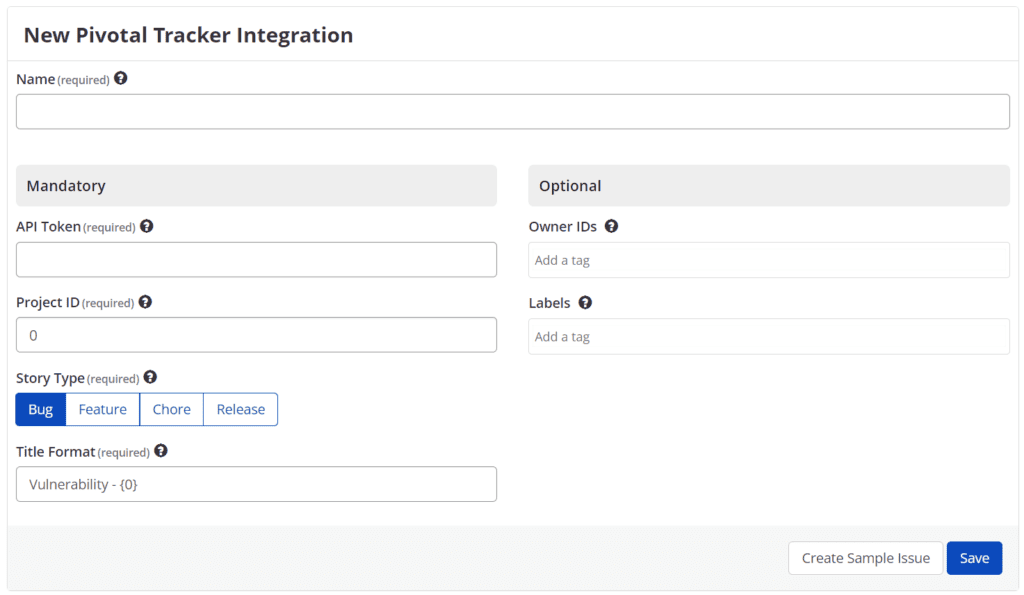
-
In the Name field, enter a name for the integration.
-
In the Mandatory section, complete the connection details:
- API Token
- Project ID
- Story Type
- Title Format
-
Select Create Sample Issue to test the new integration. A confirmation message is displayed to confirm that the sample issue has been successfully created.
-
Select Save to save the integration.
How to Export Reported Vulnerabilities to Projects in Pivotal Tracker
There are several ways to send issues to Pivotal Tracker with Invicti Enterprise:
Automatic Notification Configuration
Once notifications have been configured, you can configure Invicti Enterprise to automatically send vulnerabilities after scanning has been completed (see How to Configure a Notification to Report Vulnerabilities to an Issue Tracking System).
Send from Issues Page
You can send one or more issues from the Issues window:
- From the main menu, select Issues > All Issues.
- Select one or more issues you want to send.
- Select Send To > Pivotal Tracker.
A pop-up is displayed, with a link to the issue you have sent to Pivotal Tracker. If there is an error, this information will be displayed instead.
Send from Recent Scans Page
You can send an issue from the Recent Scans window:
- From the main menu, select Scans > Recent Scans.
- Next to the relevant scan, click Report. The report is displayed.
- Scroll down to the Technical Report section.
- From the list of detected vulnerabilities, click to select an issue and display its details.
- Select Send To > Pivotal Tracker.
If you have previously submitted this vulnerability to Pivotal Tracker, it will already be accessible. You cannot submit the same issue twice.
Need help?
Invicti Support team is ready to provide you with technical help. Go to Help Center