Package: Invicti AppSec Enterprise (on-premise, on-demand)
Contrast SCA integration
Contrast Security's SCA module identifies vulnerable open-source libraries in running applications using an instrumentation-based agent approach. The Invicti AppSec integration connects to your Contrast Security server via API and retrieves library vulnerability data for specified applications.
Prerequisites
| Field | Description |
|---|---|
| API Key | The organization-level API key from Contrast Security |
| Token | Your Contrast Security user authorization token (Service Key) |
| Organization | Your Contrast Security organization UUID |
| Contrast Security URL | The base URL of your Contrast Security instance (e.g., https://app.contrastsecurity.com) |
Get Credentials (on Contrast Security Side)
Token (Service Key):
- Log in to Contrast Security and click your profile icon in the upper right corner.
- Select User Settings.
- Under Your Keys, find and copy the Service Key (this is your Token).
API Key:
- In Contrast Security, navigate to Organization Settings > API.
- Copy the API Key shown on this page.
Organization:
- In Contrast Security, navigate to Organization Settings > General.
- Copy the Organization ID (UUID format).
All three values are required. The Token (Service Key) and API Key are used together to authenticate API requests.
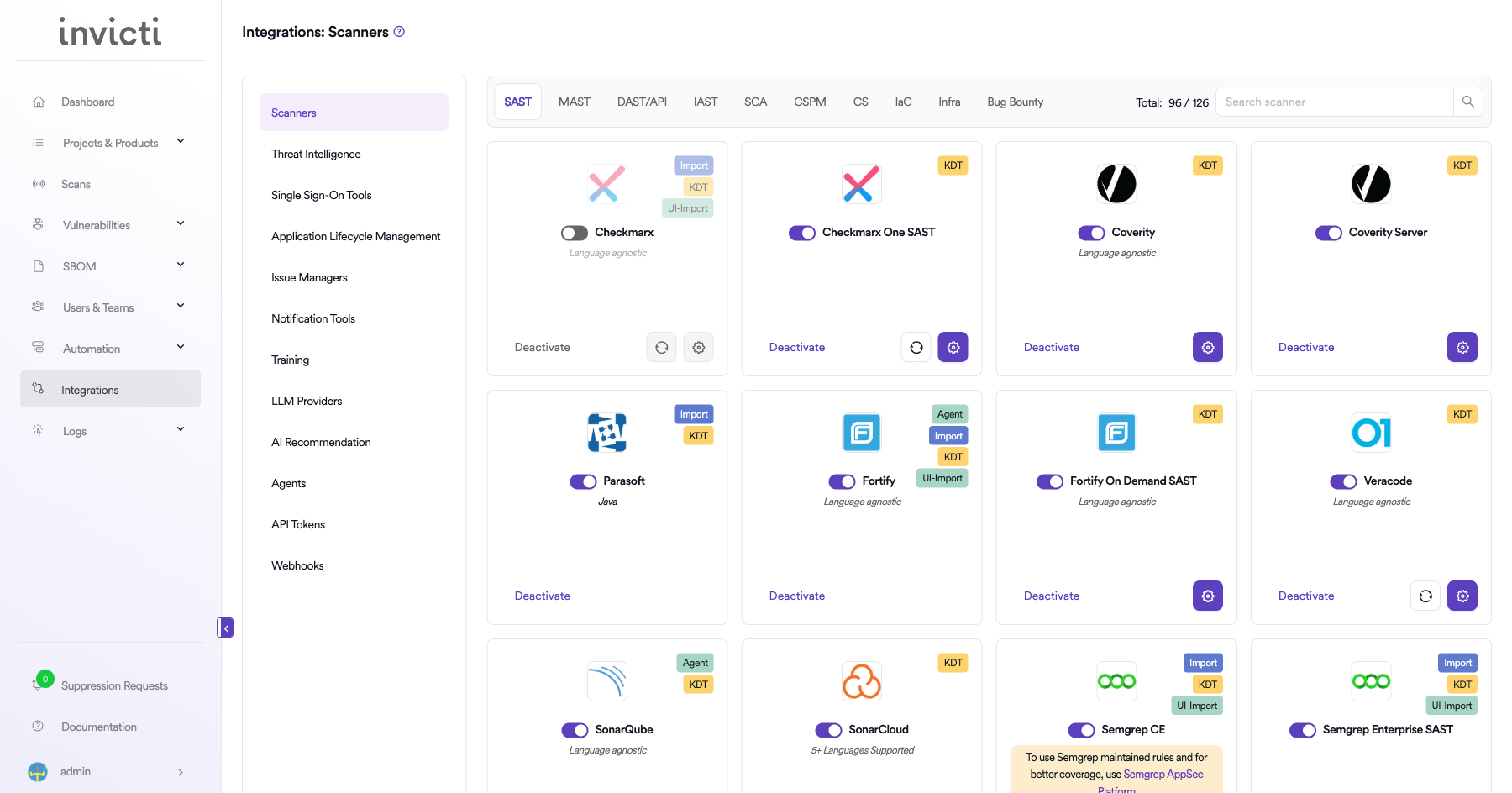
Step 1: Navigate to Integrations
From the left sidebar menu, click on Integrations.
Step 2: Select the SCA Tab
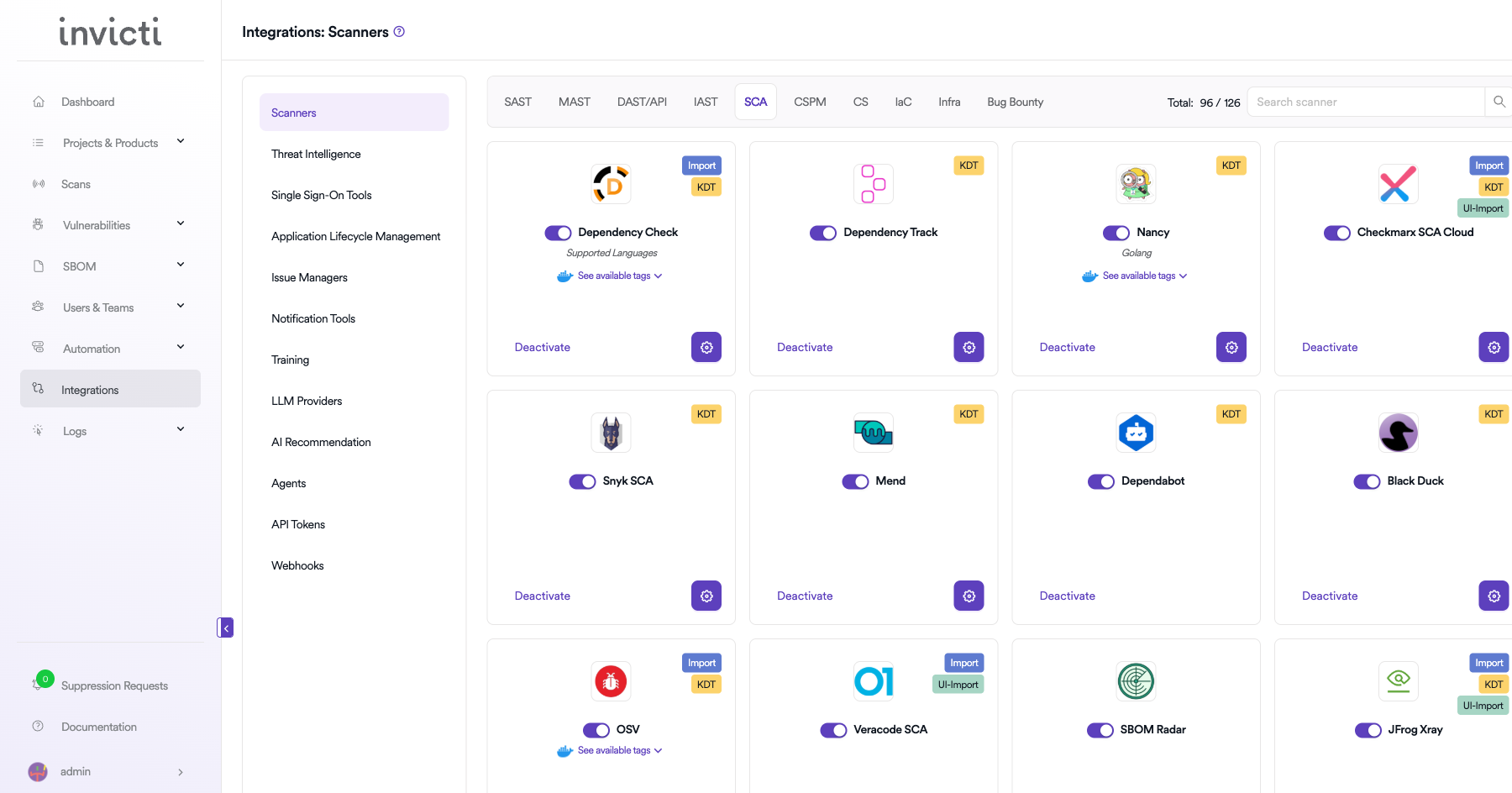
On the Integrations > Scanners page, click on the SCA tab.
Step 3: Find and Activate Contrast SCA
Scroll through the list of SCA scanners to find Contrast SCA.
- If Contrast SCA is not activated, click the Activate button to enable the integration.
The scan method badges on the Contrast SCA card include Bind and KDT.
Step 4: Configure Connection Settings
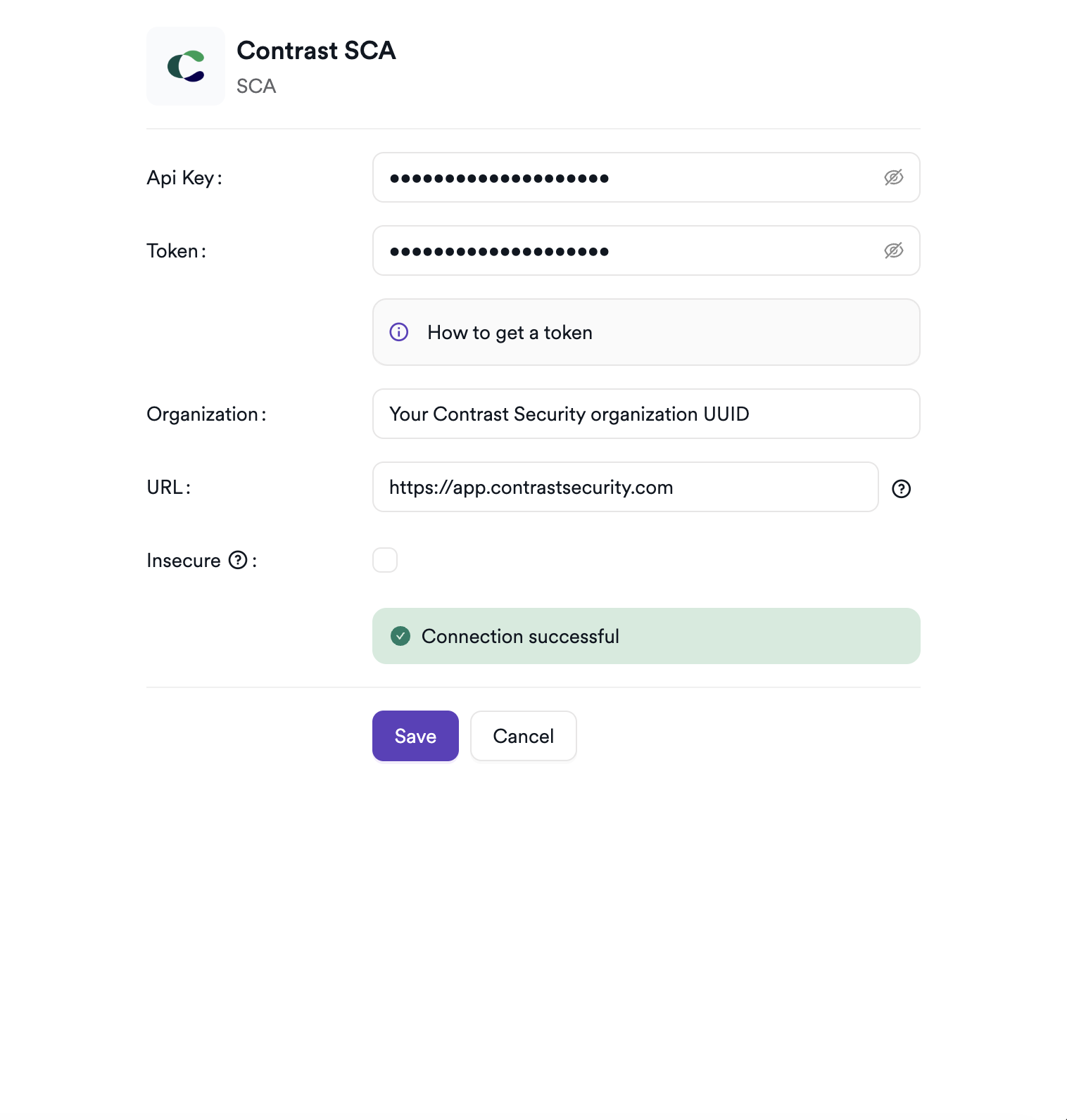
Click the gear icon on the Contrast SCA card to open the settings panel. Fill in the required fields:
| Field | Description | Required |
|---|---|---|
| API Key | The organization-level API key from Contrast Security | Yes |
| Token | Your Contrast Service Key (user authorization token) | Yes |
| Organization | Your Contrast organization UUID | Yes |
| URL | Your Contrast Security server URL | Yes |
| Insecure | Enable only if your instance uses a self-signed SSL certificate | No |
Step 5: Test the Connection
Click Test Connection. A green Connection successful message confirms that Invicti AppSec can connect to your Contrast Security instance.
Summary
| Step | Action |
|---|---|
| 1 | Navigate to Integrations from the sidebar |
| 2 | Select the SCA tab |
| 3 | Activate Contrast SCA |
| 4 | Enter API Key, Token, Organization, and URL |
| 5 | Test the connection |
Create a Scan
Navigate to Project Scanners
- Open a project in Invicti AppSec.
- Go to Settings > Scanners.
- Click Add Scanner.
Add Contrast SCA Scanner
- Select SCA as the scanner type.
- Choose Contrast SCA from the scanner list.
- Click Add to open the scan configuration drawer.
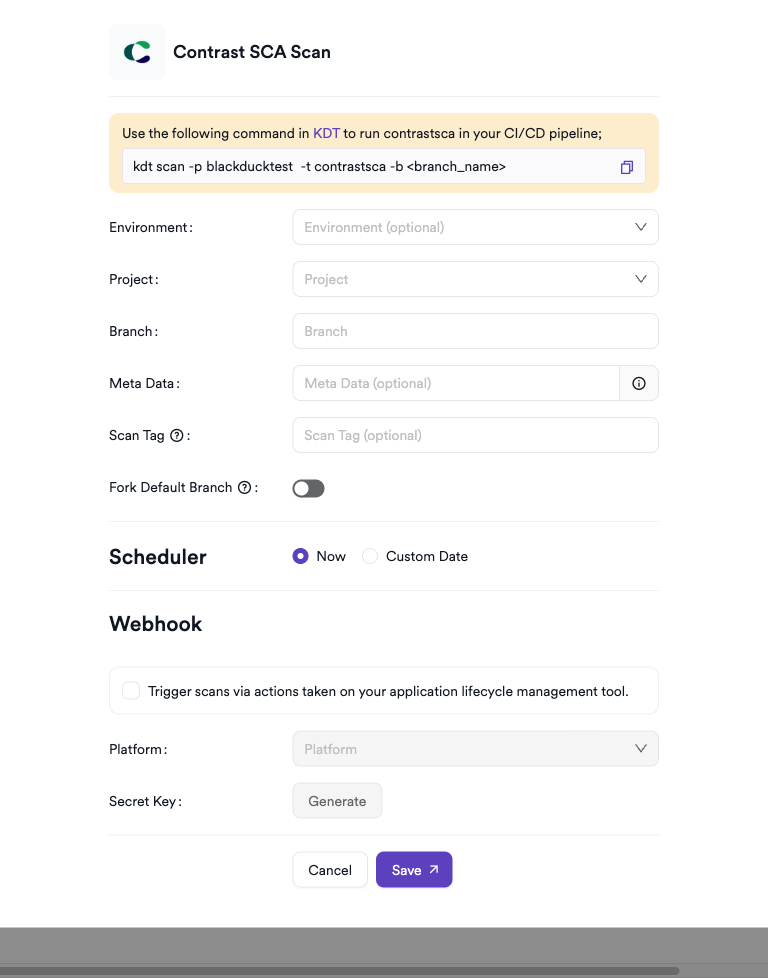
Scan Configuration Fields
| Field | Description | Required |
|---|---|---|
| Environment | Select the environment for the scan | No |
| Project | Select the Contrast Security application to scan (loaded from your organization) | Yes |
| Branch | Source code branch associated with this scan | Yes |
| Meta Data | Additional metadata for the scan | No |
| Scan Tag | Tag to identify the scan | No |
The Project list is populated from Contrast Security. Only applications monitored by the Contrast agent and associated with your organization will appear.
Scheduler
Enable the Scheduler toggle to run Contrast SCA scans on a recurring schedule.
Webhook (Optional)
Add a webhook URL to receive scan completion notifications.
KDT Command
kdt scan -p <project_name> -t contrastsca -b <branch_name>
Troubleshooting
Connection Fails
| Issue | Resolution |
|---|---|
| 403 Forbidden | Verify that both the Authorization token (Service Key) and the API Key are correct. |
| Organization not found | Check that the Organization ID matches exactly the UUID in Contrast Organization Settings. |
| URL not reachable | Confirm the Contrast server URL is accessible from the Invicti AppSec network. Check firewall rules. |
| SSL certificate error | Enable the Insecure option for self-signed certificates or add the certificate to your trust store. |
Scan Issues
| Issue | Resolution |
|---|---|
| No applications listed | Ensure the Contrast agent is deployed and reporting to the server under the configured organization. |
| Empty results | The application may have no vulnerable libraries detected, or the Contrast agent may not be actively monitoring it. |
| Application not found | Confirm the Application ID exists and is accessible with the configured organization credentials. |
| Scan takes too long | For large applications with many libraries, the API may take several minutes to paginate through all results. |
Best Practices
- Use a dedicated Contrast service account to avoid disruptions when team members leave or change roles.
- Ensure the Contrast agent is running and actively monitoring the target application before triggering a scan.
- Keep the API Key and Authorization token confidential and rotate them periodically.
- Use the Organization Settings in Contrast to verify which applications are monitored before configuring scans.
- For on-premises Contrast installations, ensure the Invicti AppSec agent can reach the Contrast server on the required ports.
Limitations
- Contrast SCA retrieves library vulnerabilities only for applications instrumented with the Contrast agent; uninstrumented applications will show no results.
- The integration retrieves all vulnerable libraries reported by Contrast — filtering by severity must be configured within Contrast Security policies.
- Contrast SCA does not support triggering new agent scans from Invicti AppSec; it only reads existing vulnerability data collected by the running agent.
- License compliance findings from Contrast are not currently imported into Invicti AppSec.
Need help?
Invicti Support team is ready to provide you with technical help. Go to Help Center