Package: Invicti AppSec Enterprise (on-premise, on-demand)
Nancy SCA integration
Invicti AppSec supports Nancy as an SCA (Software Composition Analysis) scanner. This guide explains how to activate and use the Nancy integration.
Nancy is a tool for checking Go dependencies for known vulnerabilities. It uses the Sonatype OSS Index to identify vulnerable components in Golang projects, making it a specialized SCA tool for Go-based applications.
Prerequisites
Before starting the integration, ensure you have the following:
| Requirement | Description |
|---|---|
| Docker | Docker installed and running in your CI/CD environment |
| Nancy Docker image | The Nancy Docker image for running scans |
| KDT CLI | Access to the Kondukto CLI tool (KDT) for triggering scans and importing results |
| Golang project | A Go project with a go.sum file for dependency analysis |
Nancy runs inside a Docker container and does not use a traditional Test Connection flow. Instead, configuration is done through the Docker activation dialog.
Supported Languages
Nancy exclusively supports Golang projects. It analyzes go.sum files to identify vulnerable dependencies.
Step 1: Navigate to Integrations
From the left sidebar menu, click on Integrations.
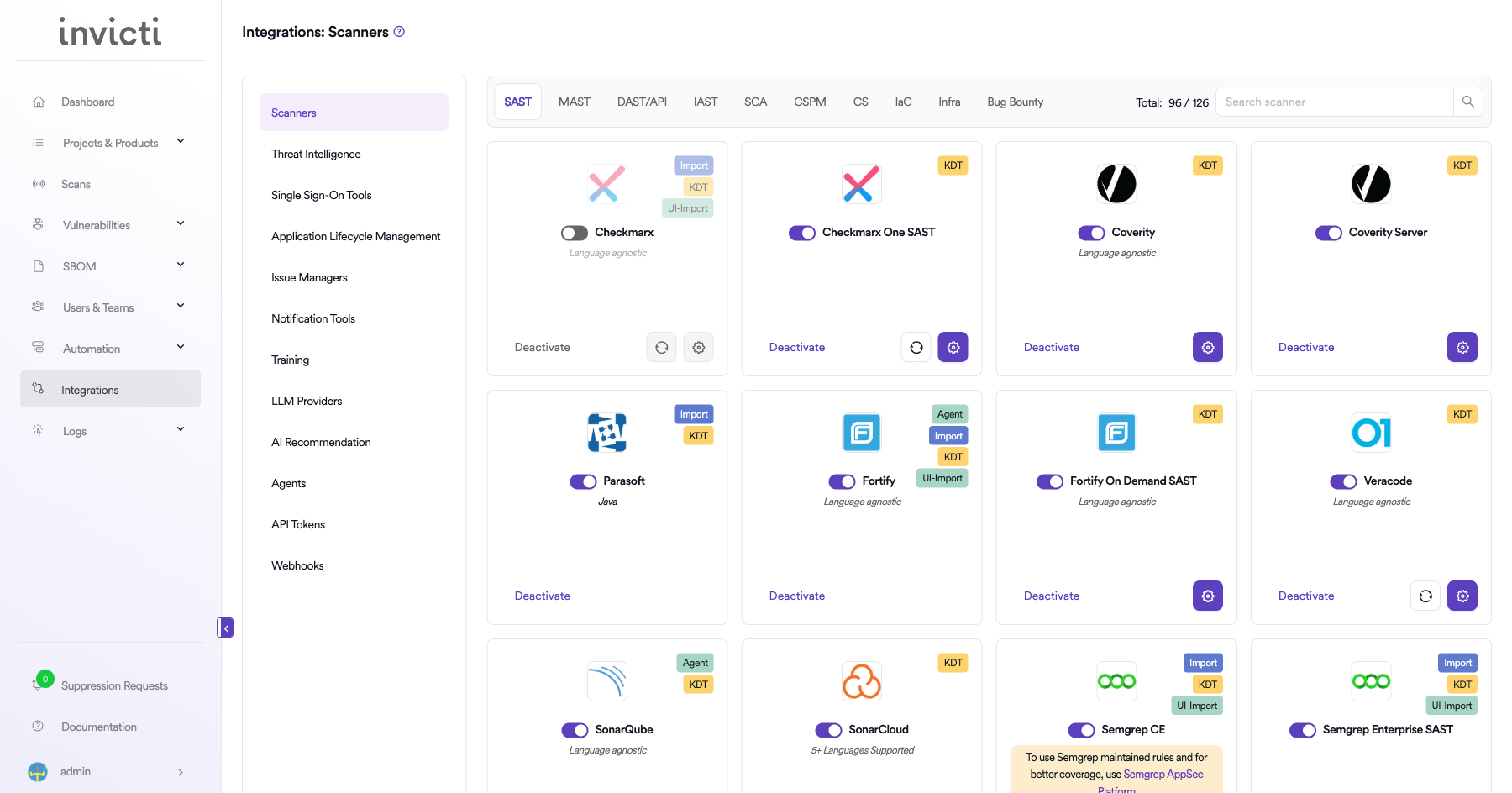
Step 2: Select the SCA Tab
On the Integrations page, you will see the Scanners section with multiple tabs. Click on the SCA tab.
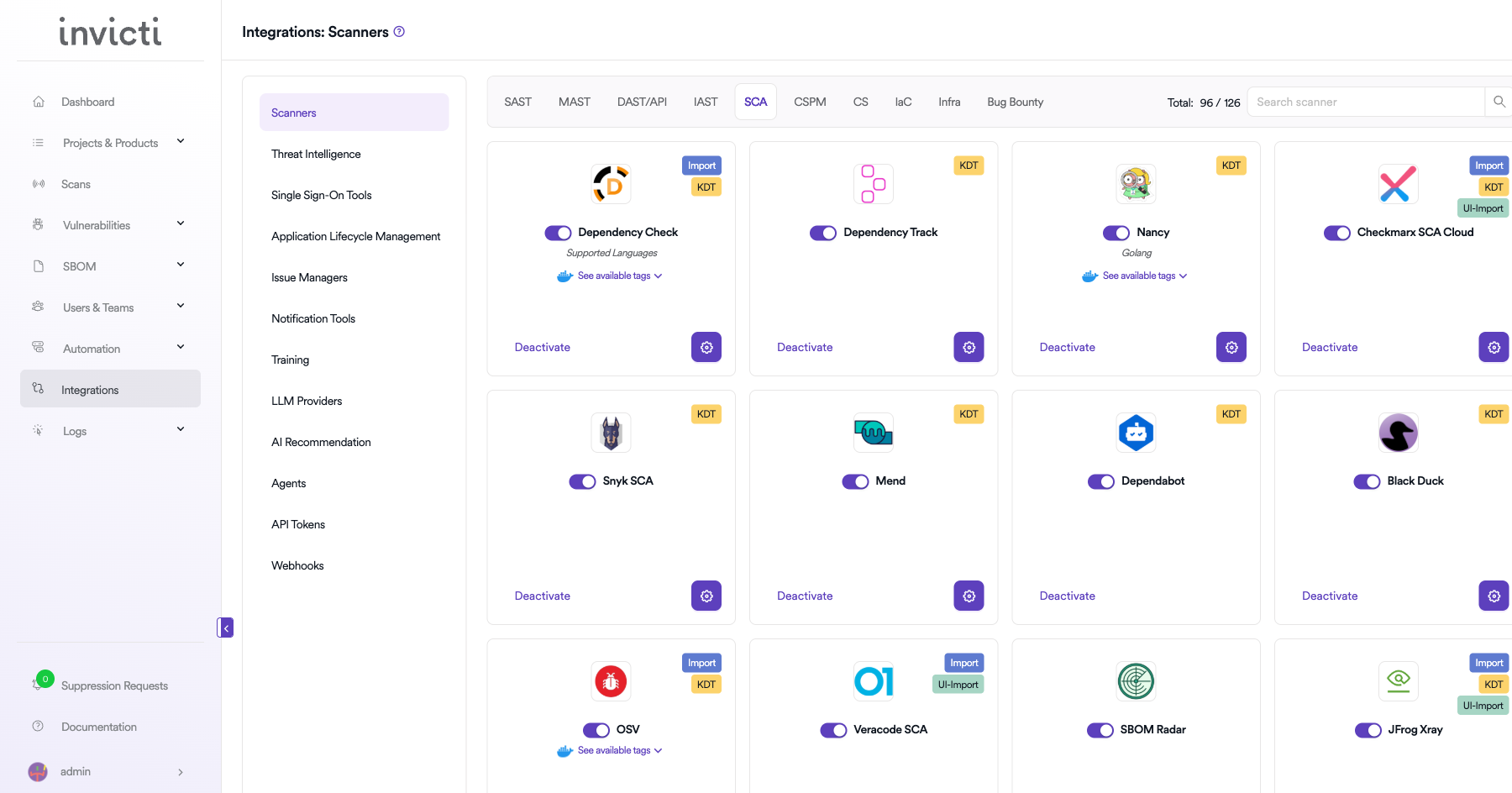
Step 3: Find and Activate Nancy
Scroll through the list of SCA scanners to find Nancy.
- If Nancy is not activated, you will see an "Activate" button. Click it to enable the integration. An activation dialog will appear where you can configure the Docker settings.
- If Nancy is already activated, you will see a toggle switch in the ON position and a "Deactivate" button, along with a gear icon for configuration.
The scan method badge on the Nancy card shows KDT, which means scans are triggered through the Kondukto CLI tool (KDT).
Step 4: Configure Docker Settings
Click on the gear icon on the Nancy card to open the configuration panel. Fill in the following fields:
| Field | Description | Required |
|---|---|---|
| Scanner Image | The Docker image to use for Nancy scans | Yes |
| Use Cache | Enable caching to speed up subsequent scans by reusing downloaded vulnerability data | No |
| Docker Images | Additional Docker image versions available for scanning | No |
| OSS Auth - Username | Username for authenticating with the Sonatype OSS Index (for higher rate limits) | No |
| OSS Auth - Password | Password/token for authenticating with the Sonatype OSS Index | No |
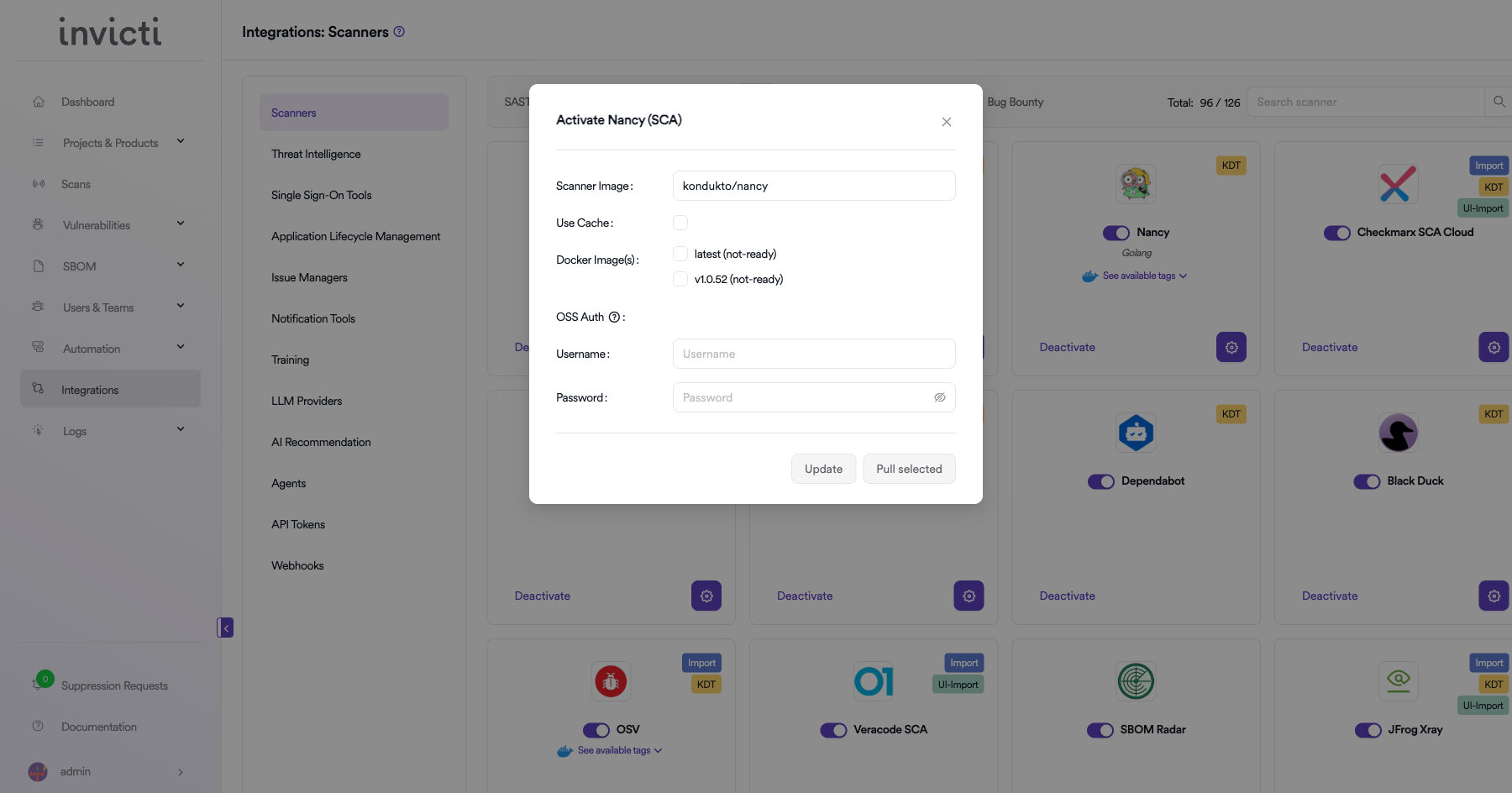
OSS Index Authentication
By default, Nancy uses the Sonatype OSS Index with anonymous access, which has rate limits. To increase rate limits, you can register for a free OSS Index account:
- Visit Sonatype OSS Index and create an account.
- Use your registered email as the Username.
- Use your API token as the Password.
Step 5: Trigger Scans via KDT CLI
Use the Kondukto CLI tool to trigger Nancy scans:
kdt scan -p <project-name> -t nancy -b <branch>
Step 6: Verify Scan Results
After the scan completes, verify that the results appear correctly:
- Check the Scans page for the newly completed scan.
- Review the Vulnerabilities tab to confirm findings were imported successfully.
- Verify severity levels and vulnerability details are accurate.
CI/CD Pipeline Example
Here is an example of integrating Nancy with the KDT CLI in a CI/CD pipeline:
# Example: GitLab CI/CD
nancy_scan:
  stage: security
  image: golang:latest
  script:
    - kdt scan -p my-go-project -t nancy -b $CI_COMMIT_BRANCH
Summary
| Step | Action |
|---|---|
| 1 | Navigate to Integrations from the sidebar |
| 2 | Select the SCA tab under Scanners |
| 3 | Find Nancy and click Activate (if not already active) |
| 4 | Configure Scanner Image, Use Cache, Docker Images, and optionally OSS Auth credentials |
| 5 | Trigger scans via the KDT CLI |
| 6 | Verify scan results in the project's Scans and Vulnerabilities sections |
Need help?
Invicti Support team is ready to provide you with technical help. Go to Help Center