Package: Invicti AppSec Enterprise (on-premise, on-demand)
SBOM radar
SBOM Radar is one of the open-source tools available within Invicti AppSec. Its development is maintained by the Invicti team, and it operates by orchestrating other tools that are active within Invicti AppSec. The tool-specific configurations are described below.
SBOM radar can be activated from the Integrations > Scanners section under Software Composition Analysis (SCA).
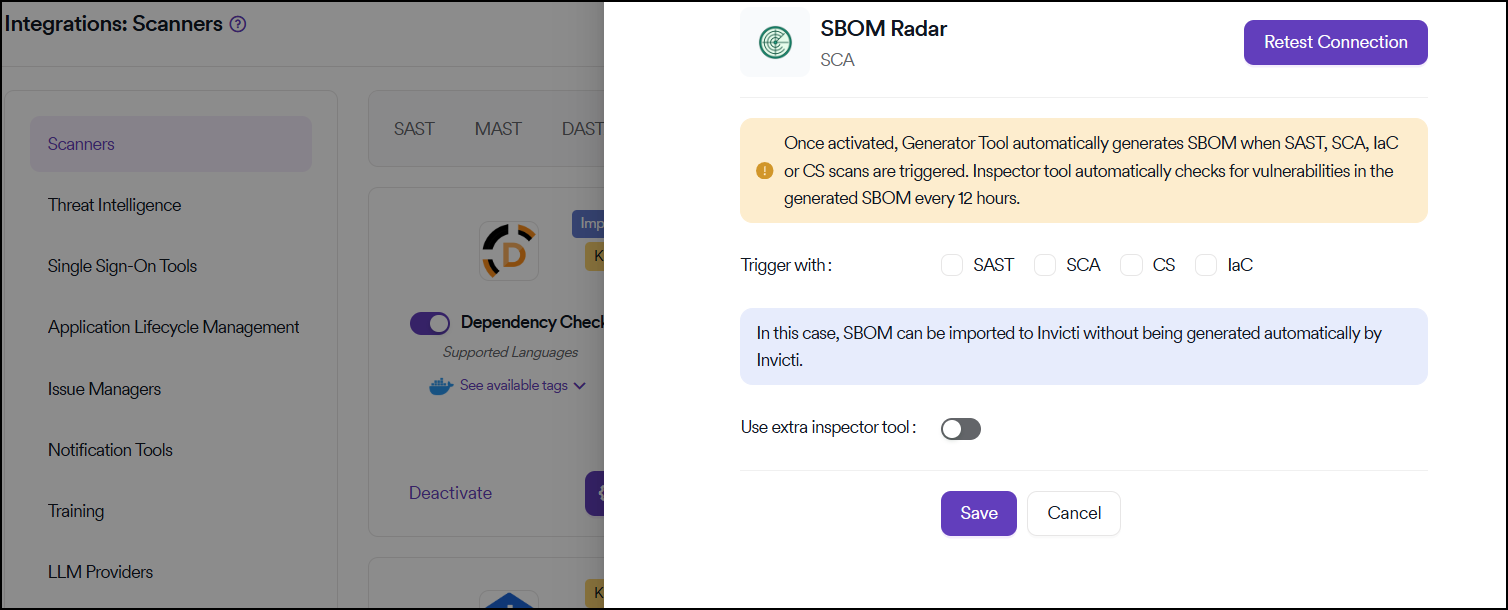
Configuration
Trigger settings
The Trigger with section of the integration defines when SBOM generation takes place on the platform:
- All scanner categories selected: SBOM is automatically generated each time a SAST, SCA, IaC, or CS scan is triggered in projects
- SAST only selected: SBOM generation is triggered exclusively alongside SAST scans
- No categories selected: You can only import SBOM into Invicti AppSec without having them generated by Invicti AppSec
Tool configuration
In the configuration section, you can also select:
- Inspector Tool: Choose the tool for vulnerability inspection
- SBOM Format: Select the appropriate format for your needs
SBOM formats may produce different results depending on the programming language used. In some cases, changing the SBOM format can result in more accurate outputs for certain languages.
Automated vulnerability detection
The Inspector Tool checks for vulnerabilities in the generated SBOMs every 12 hours automatically.
Save configuration
Once the configuration is completed, save the settings. Unlike other tools, there's no requirement to create a separate scan parameter.
If a category is selected under Trigger With, SBOM generation starts automatically immediately after the corresponding scans are completed.
Results and monitoring
Component review
The SBOM components generated as a result of these scans can be reviewed at either:
- Global level: Monitor components shared across multiple projects from the Global SBOM Components page
- Project level: Review components specific to individual projects
Automated vulnerability checking
SBOM Radar checks the listed components for known vulnerabilities at 12-hour intervals. Even if no new scan is performed, the latest component list is synchronized every 12 hours.
If a vulnerability is introduced in a component during this period, it becomes visible in the system within 12 hours, even when projects are in a frozen state.
SBOM tabs
When you click the SBOM tab, you'll see a detailed interface with the following menus:
- Scans
- Components
- Dependency Tree
Scans section
The Scans section displays comprehensive information about your SBOM scans:
- Last scan time
- SBOM format
- Project details
- Branch information
- SBOM source
- Inspector tool
- Number of vulnerable components
- Total number of components discovered in the projects under the selected product
Component analysis
Access component details
Using the Action button, you can access the components created by the SBOM radar tool and reviewed in the security scans of the relevant project.
After clicking the Action button, a project-level view opens where the components related to the scan are listed.
View vulnerabilities
Click the Vulnerabilities button next to a component to view detailed information about any vulnerabilities associated with that component.
When you click the link under the Action column, you're redirected to a detailed interface where all identified vulnerabilities are listed. You can examine the vulnerabilities more thoroughly on this screen.
Dependency tree
When dependency information is included in an imported SBOM report or when Black Duck is selected as the SBOM generator, trees are generated that present the relationship between direct and transitive dependencies.
Dependency trees are available when:
- Dependency information is included in an imported SBOM report
- Black Duck is selected as the SBOM generator
The generated tree is displayed under the Dependency Tree menu, providing a visual representation of component relationships and dependencies in your project.
CLI import method
Alternative approach
SBOM lists can be imported via the CLI instead of being generated automatically by the system. As Invicti AppSec, it's recommended that SBOMs be created during the build phase and then imported. This approach allows transitive dependencies to be included, resulting in a more accurate and complete SBOM.
Requirements
To use this method, you must have:
- KDT tool installed
- An access token belonging to a user with the Admin role
Installation
KDT CLI can be downloaded from: GitHub | KDT
Import command
An example command for importing an SBOM:
kdt sbom import -p {Project_name} -b {Branch_name} -f {SBOM_file_path}
Tagging system
The system assigns different tags based on the SBOM source:
- SBOM Import tags: Applied to SBOMs imported into the platform via CLI
- Source Code, Docker Image, or similar tags: Applied to SBOMs generated by tools such as Syft
Need help?
Invicti Support team is ready to provide you with technical help. Go to Help Center