Package: Invicti AppSec Core (on-demand), Invicti AppSec Enterprise (on-premise, on-demand)
Burp Suite Enterprise Integration
Burp Suite Enterprise Edition is a web application security testing platform by PortSwigger that enables automated, scheduled scanning at scale. This integration allows Invicti AppSec to trigger scans in Burp Suite Enterprise and import the results.
Prerequisites
| Field | Description |
|---|---|
| URL | Base URL of your Burp Suite Enterprise server (e.g., https://burpsuite.your-company.com) |
| API Token | API token generated from Burp Suite Enterprise |
Get an API Token (on Burp Suite Enterprise Side)
- Log in to your Burp Suite Enterprise web interface.
- Navigate to Settings > API.
- Click Generate new token.
- Copy the token — it is shown only once.
The API user requires permission to create and read scan configurations and schedule items.
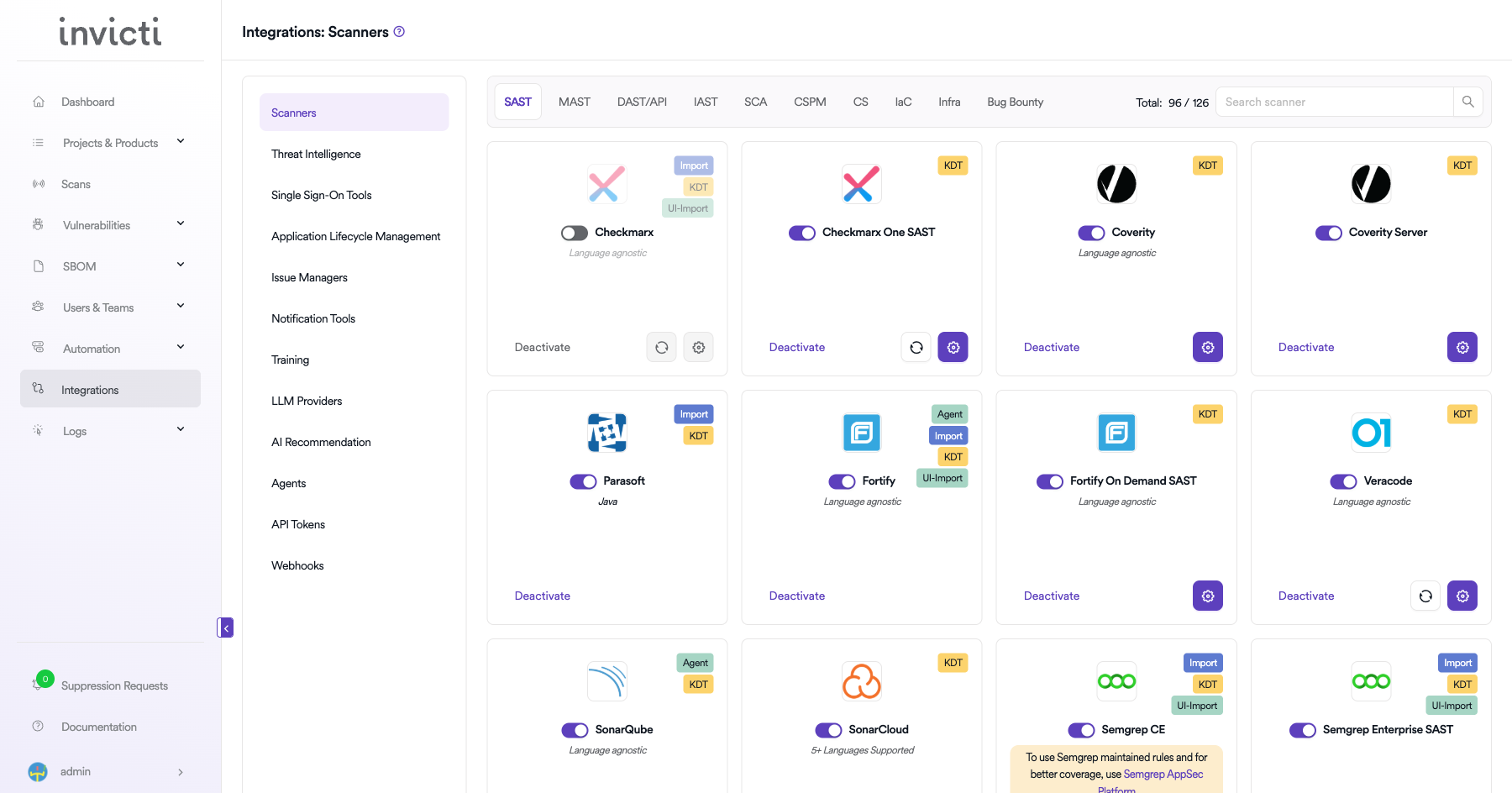
Step 1: Navigate to Integrations
From the left sidebar menu, click on Integrations.
Step 2: Select the DAST/API Tab
On the Integrations > Scanners page, click on the DAST/API tab.
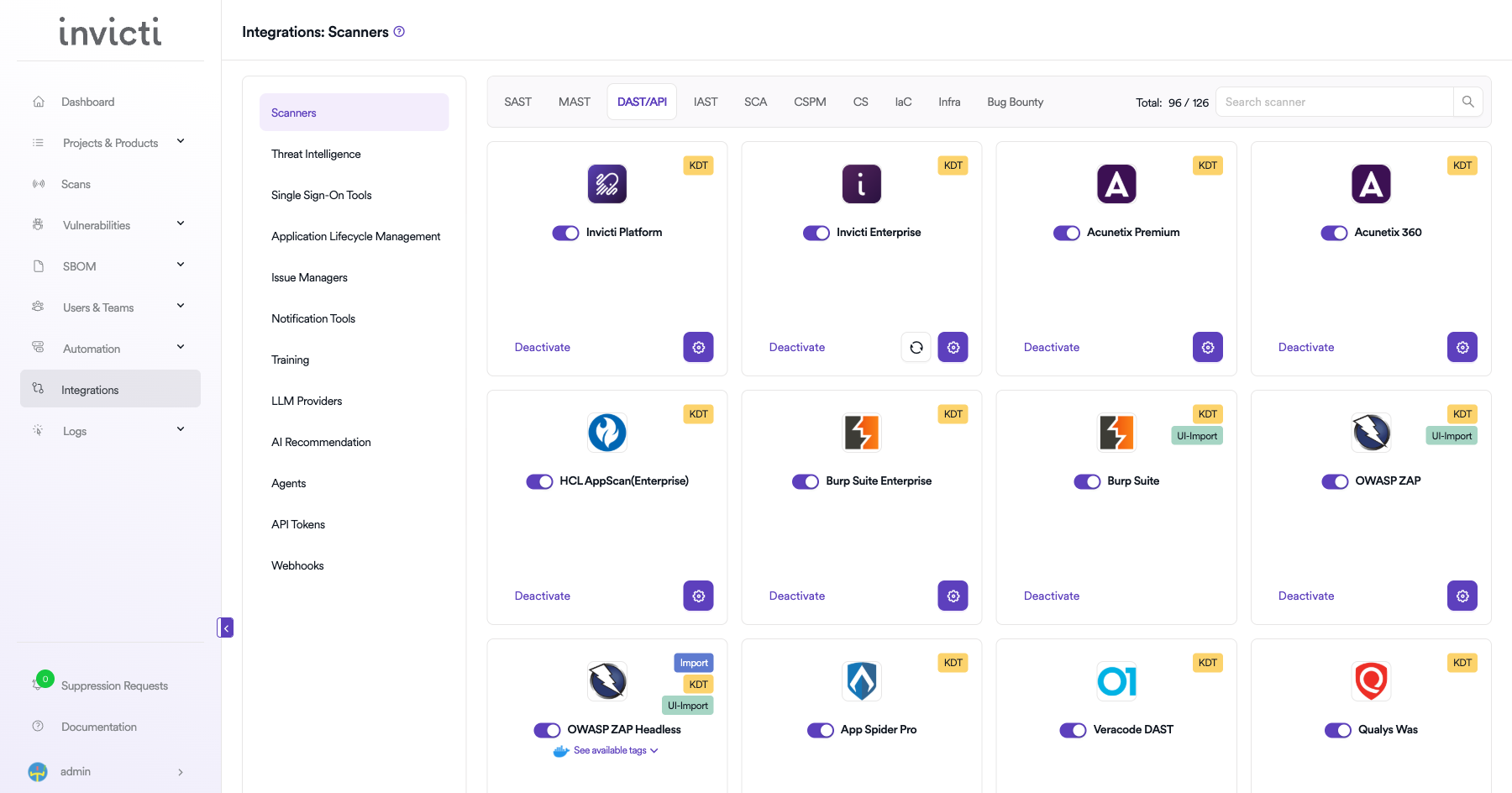
Step 3: Find and Activate Burp Suite Enterprise
Locate the Burp Suite Enterprise card and click the toggle or Activate button.
Step 4: Configure Connection Settings
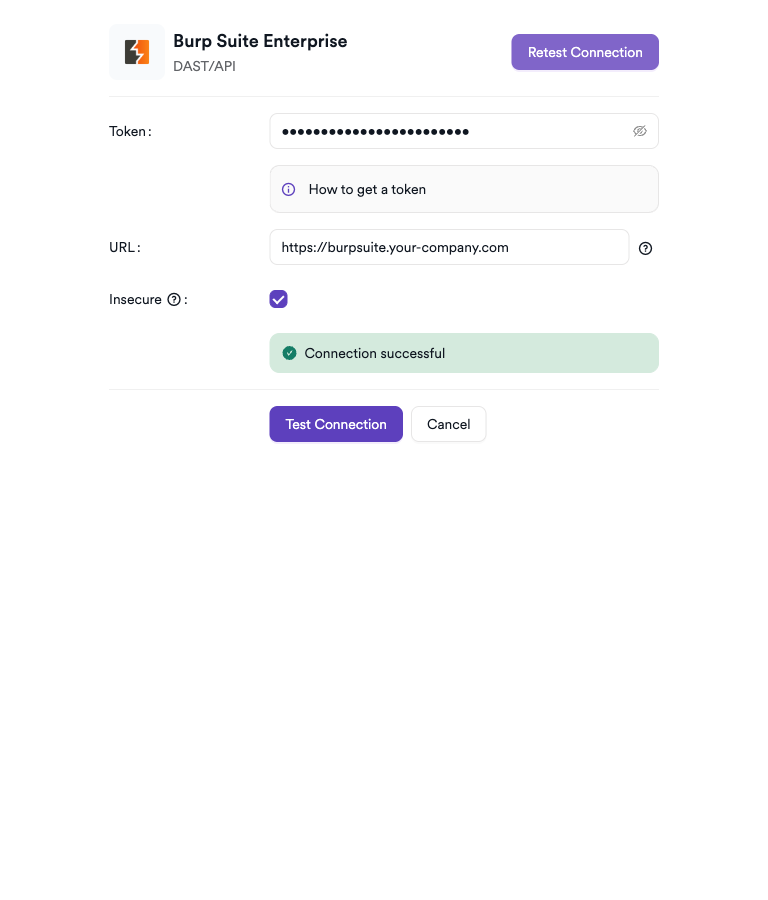
Click the gear icon on the Burp Suite Enterprise card to open the settings panel. Fill in the following fields:
| Field | Description |
|---|---|
| Token | Your Burp Suite Enterprise API token |
| URL | The base URL of your Burp Suite Enterprise server |
| Insecure | Enable to skip SSL certificate validation (not recommended for production) |
Step 5: Test the Connection
Click Test Connection. A green Connection successful message confirms the credentials are valid.
Summary
| Step | Action |
|---|---|
| 1 | Navigate to Integrations from the sidebar |
| 2 | Select the DAST/API tab |
| 3 | Activate Burp Suite Enterprise |
| 4 | Enter API Token and server URL |
| 5 | Test the connection |
Create a Scan
Navigate to Project Scanners
- Open a project in Invicti AppSec.
- Go to Settings > Scanners.
- Click Add.
Add Burp Suite Enterprise Scanner
- Select DAST/API as the scanner type.
- Choose Burp Suite Enterprise from the scanner list.
- Click Add to open the scan configuration form.
Scan Configuration Fields
| Field | Description | Required |
|---|---|---|
| Environment | Select the environment for the scan | No |
| Site | The Burp Suite Enterprise site to scan | Yes |
| Scan Configurations | Scan configurations to apply (required if Start Scan is enabled) | Conditional |
| Start Scan | Toggle to trigger a new scan immediately | No |
| Branch | Source code branch associated with this scan | No |
| Meta Data | Additional metadata for the scan | No |
| Scan Tag | Tag to identify the scan | No |
| Fork Scan | Enable to run the scan on a feature branch | No |
Find Site ID and Scan Configuration IDs
- In Burp Suite Enterprise, go to Sites — the Site ID is visible in the URL when you open a site (
/sites/{id}). - Go to Scan configurations — each configuration has an ID visible in the details view.
Scheduler
Enable the Scheduler toggle to run scans on a recurring schedule.
Webhook (Optional)
Add a webhook URL to receive scan completion notifications.
KDT Command
kdt scan -p <project_name> -t burpsuiteenterprise -b <branch_name>
Troubleshooting
Connection Fails
| Issue | Resolution |
|---|---|
| Invalid token | Regenerate the API token from Burp Suite Enterprise Settings > API |
| SSL certificate error | Enable the Insecure toggle if using a self-signed certificate |
| URL unreachable | Ensure Invicti AppSec can reach the Burp Suite Enterprise server on the network |
| 403 Forbidden | The API token may lack permissions — check the token's associated user role |
Scan Issues
| Issue | Resolution |
|---|---|
| Site ID not found | Verify the Site ID exists in Burp Suite Enterprise under Sites |
| Scan configuration not found | Confirm the Scan Configuration ID is correct and accessible to the API user |
| Scan stuck in queued state | Check Burp Suite Enterprise's scanner capacity and active scan limits |
| Empty results | Ensure the scan completed in Burp Suite Enterprise before importing |
Best Practices
- Use a dedicated service account with minimal required permissions for the API token.
- Rotate API tokens periodically or after personnel changes.
- Set Start Scan = false when you want to retrieve existing scan results without triggering a new scan.
- Define scan configurations in Burp Suite Enterprise to control crawl scope, authentication, and issue severity thresholds.
Limitations
- The integration uses Burp Suite Enterprise's GraphQL API (
/graphql/v1); ensure this endpoint is accessible. - Concurrent scan limits are governed by your Burp Suite Enterprise license.
- Scan configuration IDs must be pre-created in Burp Suite Enterprise; they cannot be created from Invicti AppSec.
Need help?
Invicti Support team is ready to provide you with technical help. Go to Help Center