Package: Invicti AppSec Core (on-demand), Invicti AppSec Enterprise (on-premise, on-demand)
Qualys WAS DAST/API Integration
Qualys Web Application Scanning (WAS) is a cloud-based DAST solution for discovering and cataloging web applications and detecting vulnerabilities with high accuracy. This integration allows Invicti AppSec to trigger Qualys WAS scans and import findings.
Prerequisites
| Field | Description |
|---|---|
| Qualys Platform URL | Your Qualys API gateway URL (e.g., https://qualysapi.qualys.com) |
| Username | Qualys account username |
| Password | Qualys account password |
Get Credentials (on Qualys Side)
- Log in to the Qualys Platform.
- Your API server URL is shown on the platform identification page based on your account region (e.g.,
qualysapi.qualys.com,qualysapi.qg2.apps.qualys.com). - Use the same username and password you use to log in to the Qualys portal for API access.
- Ensure the account has the WAS Module enabled and API access permissions.
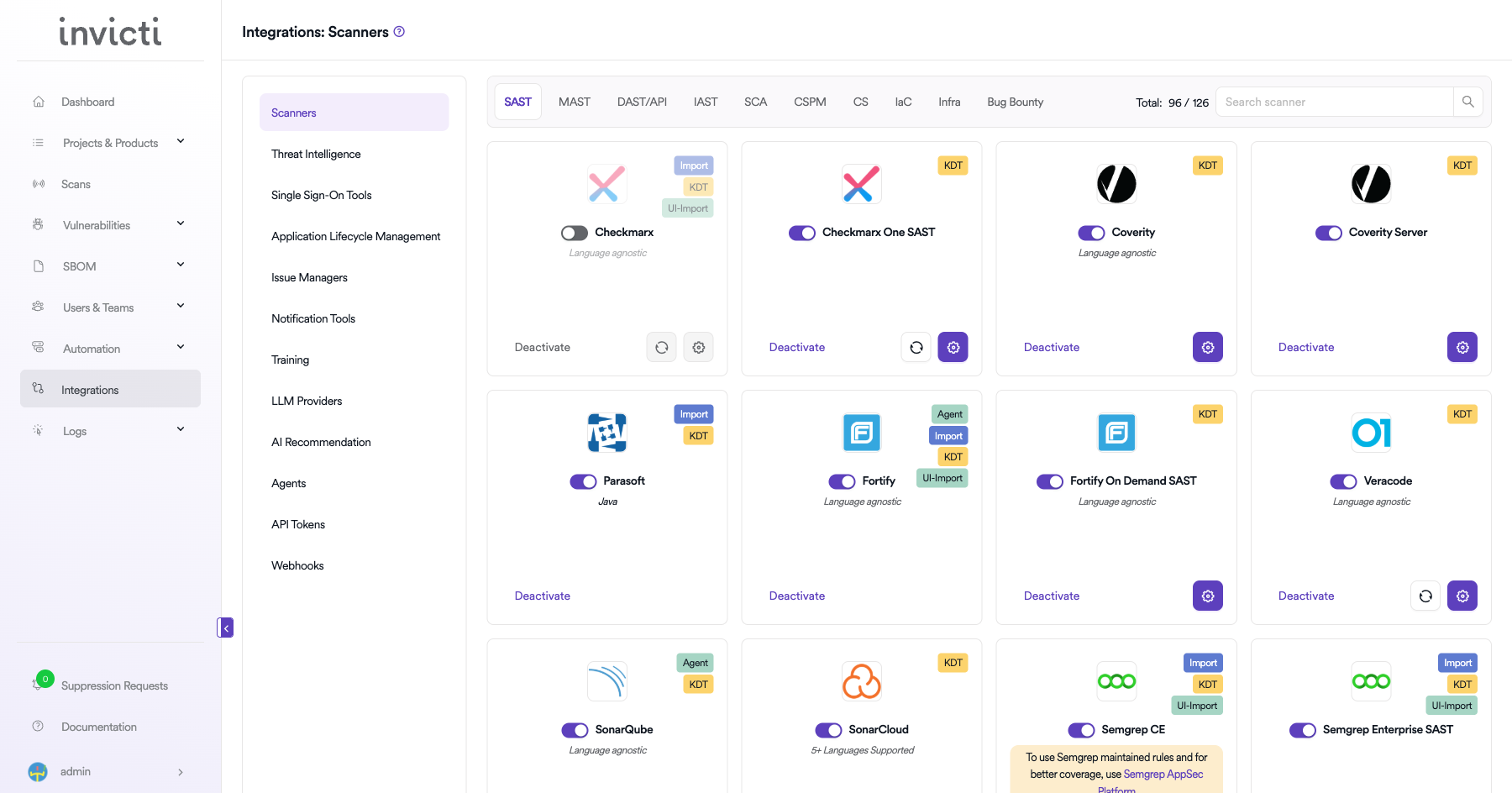
Step 1: Navigate to Integrations
From the left sidebar menu, click on Integrations.
Step 2: Select the DAST/API Tab
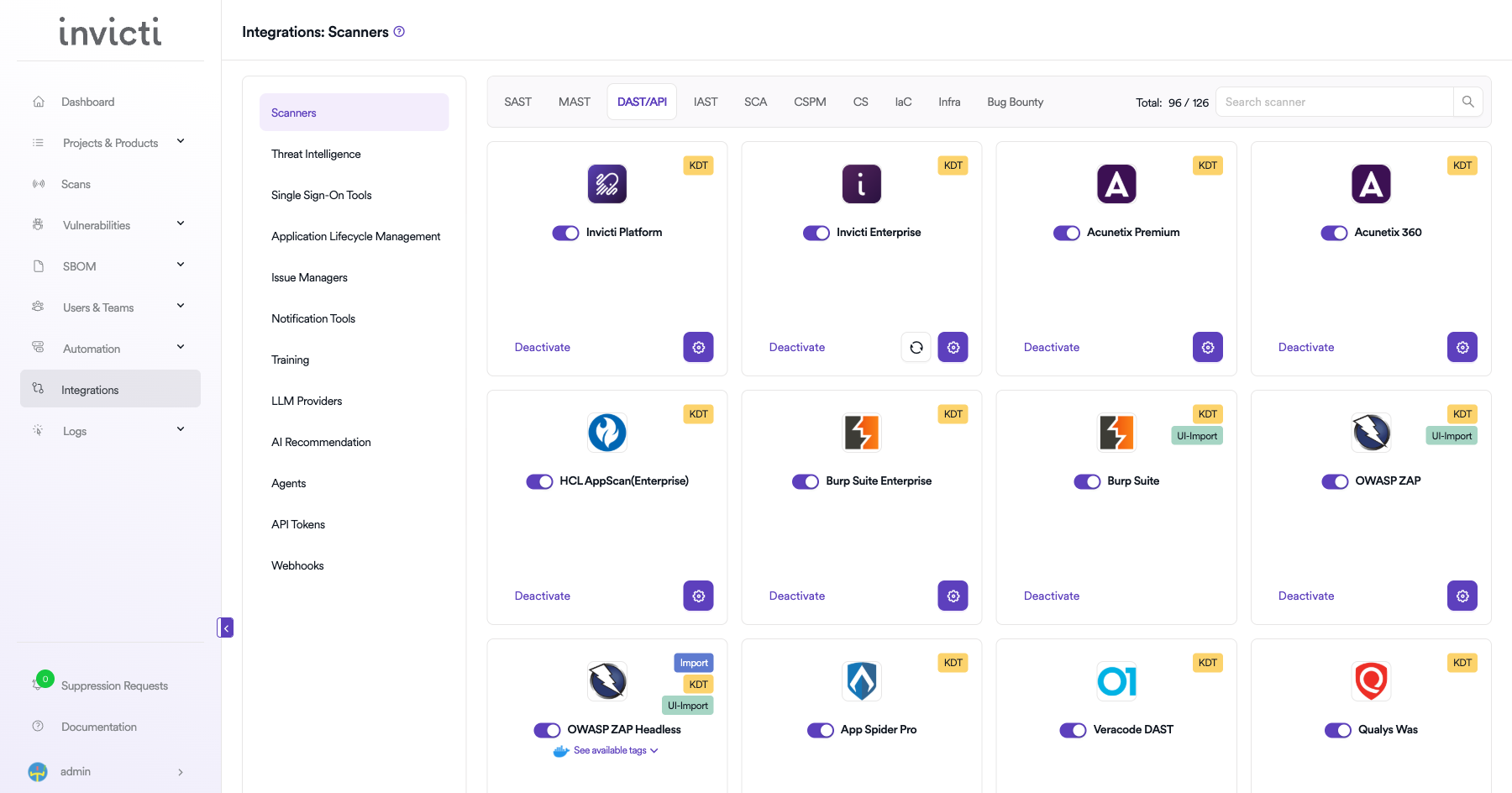
On the Integrations > Scanners page, click on the DAST/API tab.
Step 3: Find and Activate Qualys WAS
Scroll through the list of DAST/API scanners to find Qualys WAS.
- If Qualys WAS is not activated, you will see an "Activate" button. Click it to enable the integration.
The scan method badge on the Qualys WAS card shows KDT, which means scans are triggered through the Kondukto CLI tool (KDT).
Step 4: Configure Connection Settings
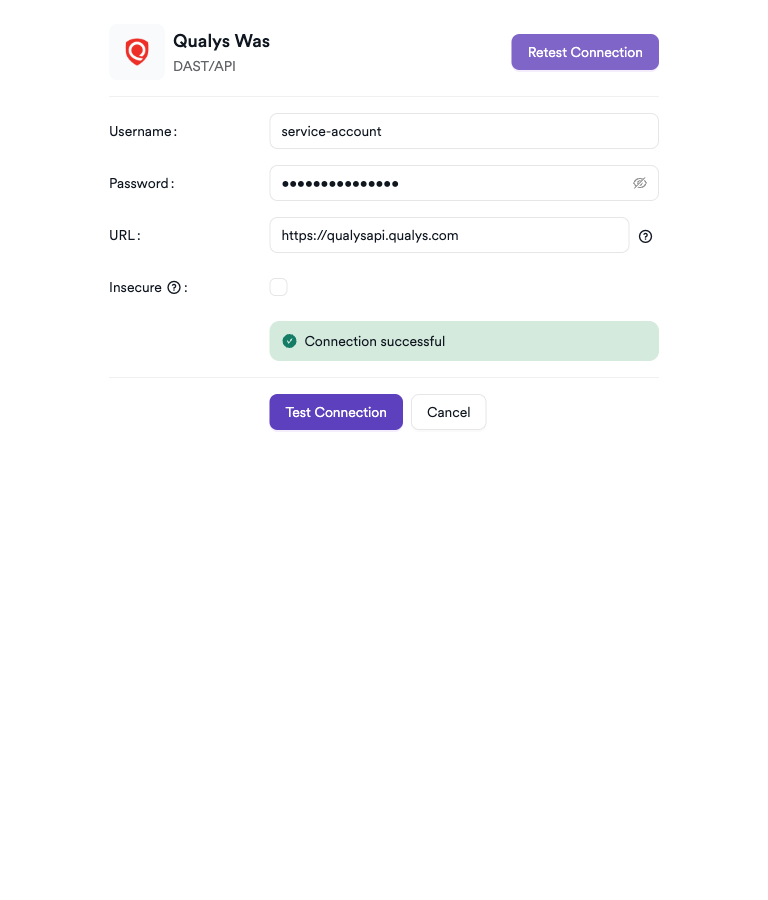
Click on the gear icon on the Qualys WAS card to open the configuration panel. Fill in the required fields:
- Username: Enter your Qualys account username.
- Password: Enter your Qualys account password.
- URL: Enter your Qualys API gateway URL (e.g.,
https://qualysapi.qualys.com). - Insecure: Enable this checkbox only if your Qualys instance uses a self-signed SSL certificate.
Step 5: Test the Connection
Click Test Connection. A green Connection successful message confirms the credentials and API URL are valid.
Summary
| Step | Action |
|---|---|
| 1 | Navigate to Integrations from the sidebar |
| 2 | Select the DAST/API tab |
| 3 | Activate Qualys WAS |
| 4 | Enter URL, Username, and Password |
| 5 | Test the connection |
Create a Scan
Navigate to Project Scanners
- Open a project in Invicti AppSec.
- Go to Settings > Scanners.
- Click Add Scanner.
Add Qualys WAS Scanner
- Select DAST/API as the scanner type.
- Choose Qualys WAS from the scanner list.
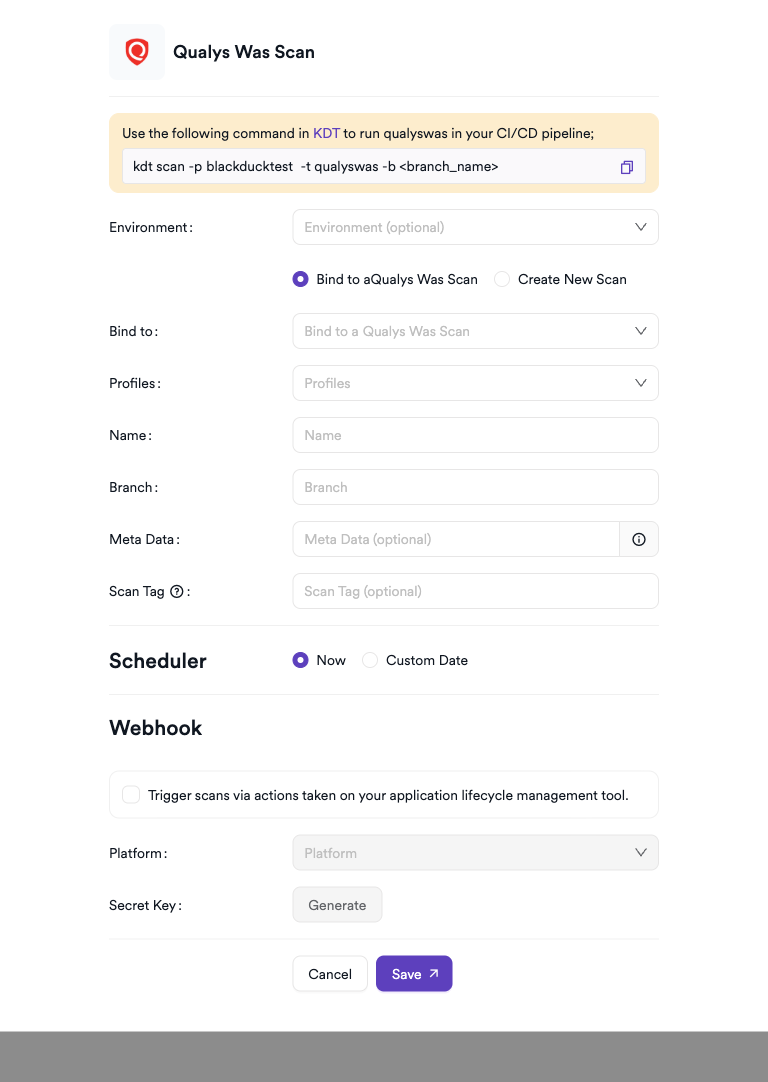
- Click Add to open the scan configuration drawer.
Scan Configuration Fields
| Field | Description | Required |
|---|---|---|
| Environment | Select the environment for the scan | No |
| Bind To | Existing Qualys WAS scan to bind to | Yes |
| Profiles | Option profile to use for the scan | No |
| Name | Name for the new scan | Yes |
| Branch | Source code branch associated with this scan | No |
| Meta Data | Additional metadata for the scan | No |
| Scan Tag | Tag to identify the scan | No |
Scheduler
Enable the Scheduler toggle to run scans on a recurring schedule.
Webhook (Optional)
Add a webhook URL to receive scan completion notifications.
KDT Command
kdt scan -p <project_name> -t qualyswas -b <branch_name>
Troubleshooting
Connection Fails
| Issue | Resolution |
|---|---|
| Invalid credentials | Verify username and password; ensure the account is not locked |
| Wrong API URL | Use the platform identification page to find the correct API gateway URL for your region |
| WAS module not enabled | Contact Qualys support to enable the WAS module on your subscription |
| Network/firewall | Ensure outbound HTTPS access to the Qualys API gateway is permitted |
Scan Issues
| Issue | Resolution |
|---|---|
| No web applications listed | Ensure the service account has access to the target web application records in Qualys WAS |
| Scan not starting | Verify scan concurrency limits have not been reached in your Qualys subscription |
| Empty scan results | Confirm the scan completed in the Qualys WAS dashboard and the report is available |
| Authentication errors | Rotate the password and update the integration |
Best Practices
- Use a dedicated Qualys service account with WAS API access only.
- Find and confirm your correct Qualys API server URL using the Qualys platform identification page before configuring the integration.
- Rotate the password regularly and update the integration immediately.
- Pre-create and verify web application records in Qualys WAS before triggering scans.
- Use Discovery Scans to identify application inventory before running full Vulnerability Scans.
Limitations
- The Qualys API server URL is region-specific; using the wrong URL will result in authentication failures.
- Concurrent scan limits depend on your Qualys WAS subscription tier.
- Web application records must be pre-configured in Qualys WAS; they cannot be created from the Invicti AppSec integration.
- Password-based authentication is required; token-based authentication is not supported for this integration.
Need help?
Invicti Support team is ready to provide you with technical help. Go to Help Center