Package: Invicti AppSec Core (on-demand), Invicti AppSec Enterprise (on-premise, on-demand)
OWASP ZAP Headless DAST/API Integration
OWASP ZAP Headless is the daemon mode variant of OWASP ZAP, designed for automated CI/CD pipeline integration. It runs without a graphical interface, making it suitable for headless server environments. In Invicti AppSec, ZAP Headless runs as an agent-based or KDT-managed scanner.
OWASP ZAP Headless is an Agent/KDT-based scanner. It does not require connection to an external service. Scans are executed by the Invicti agent installed in your environment or via KDT.
Prerequisites
| Requirement | Description |
|---|---|
| Invicti Agent | An Invicti AppSec agent must be installed and running in the target environment |
| Target URL | The web application URL that the agent can reach and scan |
| Docker | Docker must be installed on the agent host (ZAP Headless runs as a Docker container) |
Step 1: Navigate to Integrations
From the left sidebar menu, click on Integrations.
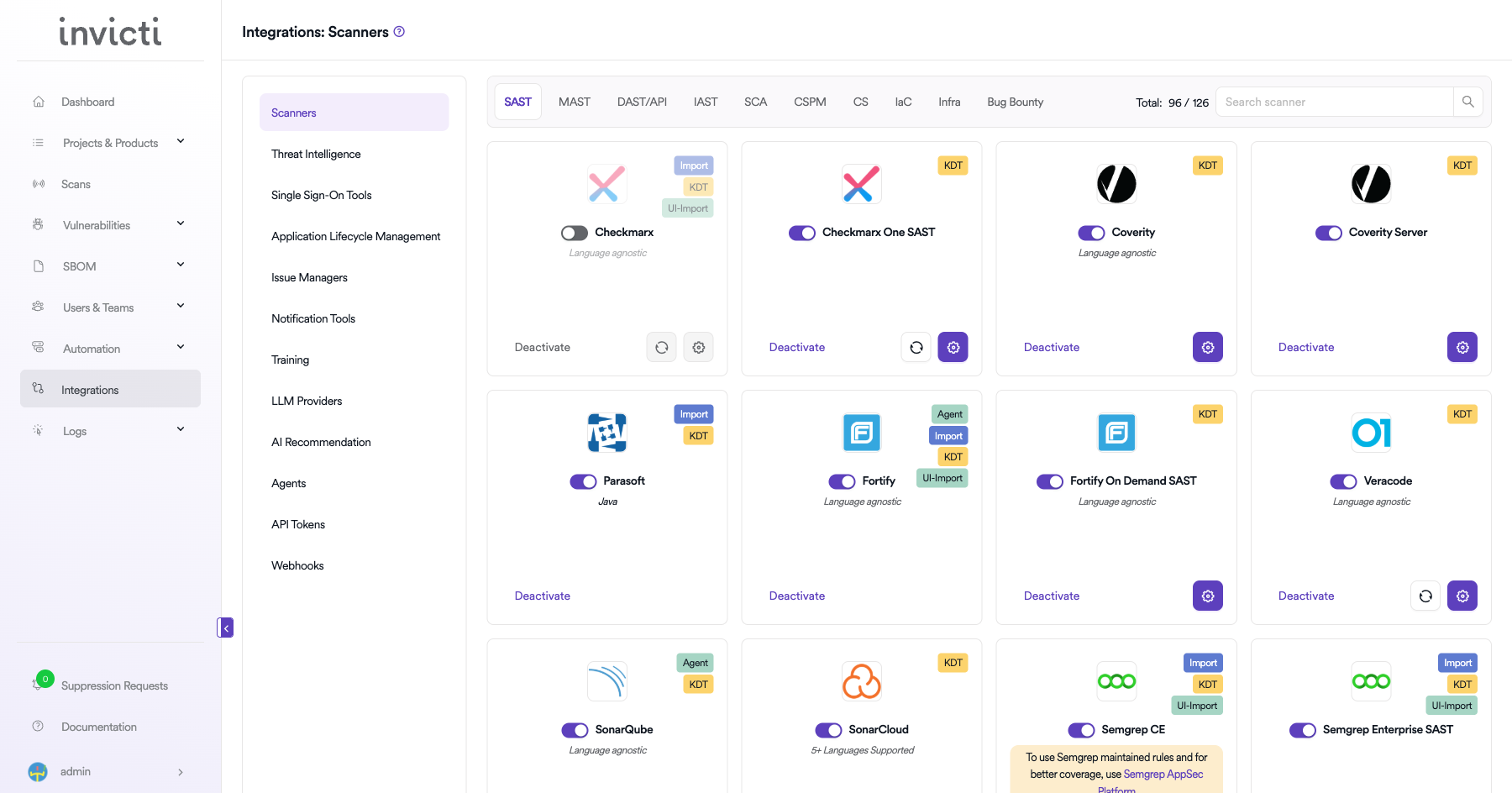
Step 2: Select the DAST/API Tab
On the Integrations > Scanners page, click on the DAST/API tab.
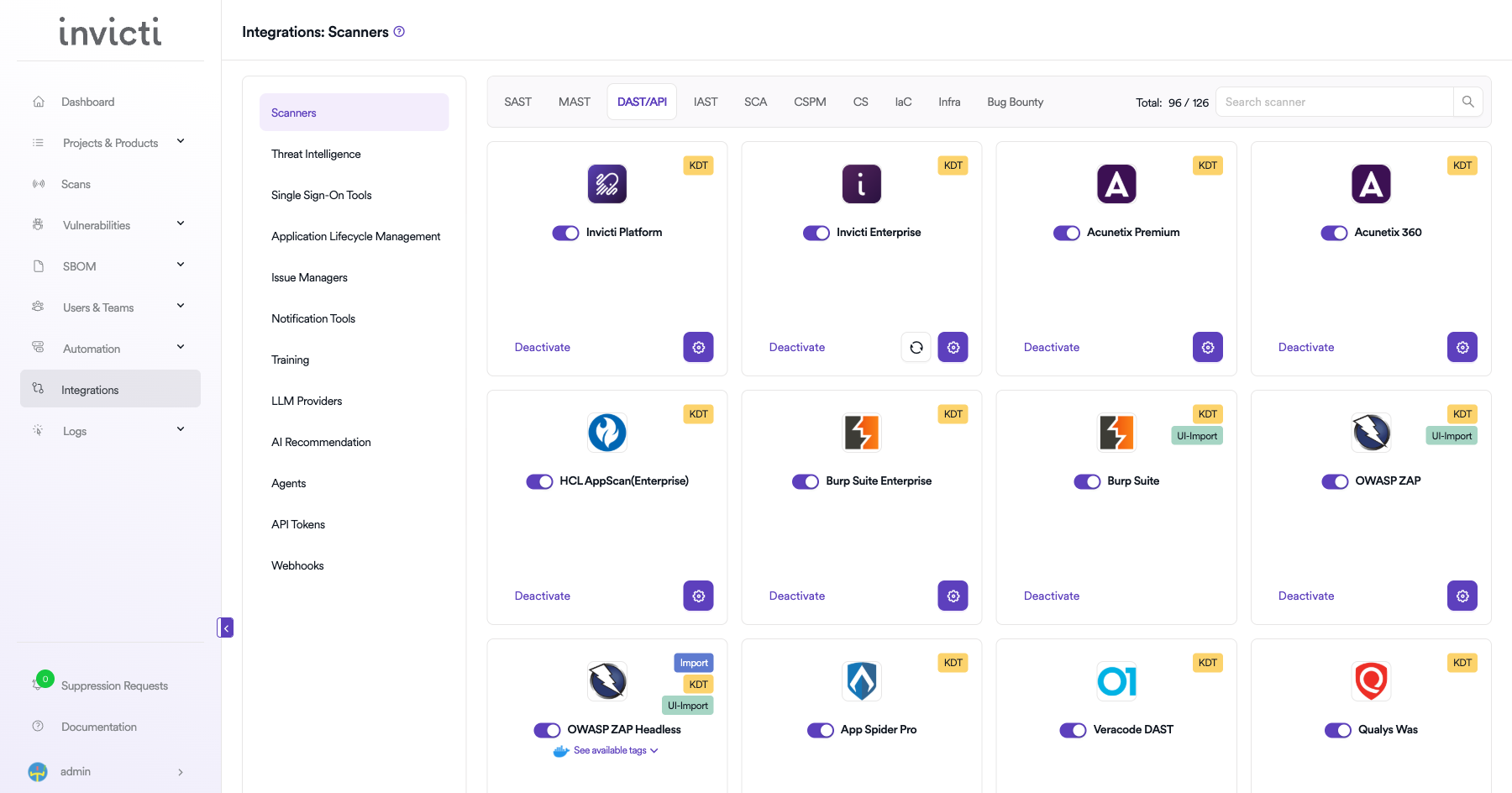
Step 3: Find and Activate OWASP ZAP Headless
Scroll through the list of DAST/API scanners to find OWASP ZAP Headless.
- If OWASP ZAP Headless is not activated, you will see an "Activate" button. Click it to enable the integration.
The scan method badge on the OWASP ZAP Headless card shows KDT. No external API credentials or server connection are required. Scans are executed directly by the Invicti agent installed in your environment or via KDT.
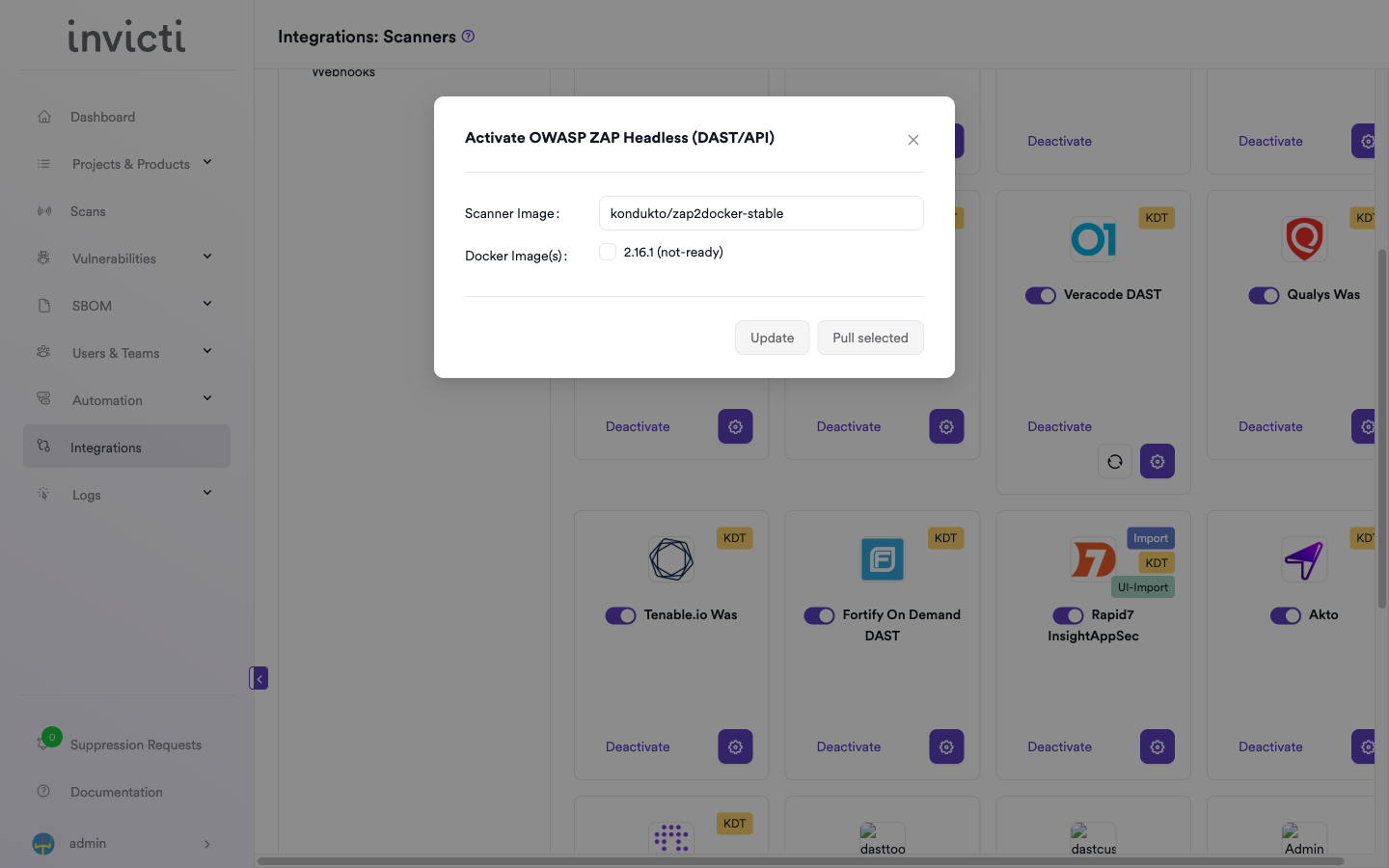
Summary
| Step | Action |
|---|---|
| 1 | Navigate to Integrations from the sidebar |
| 2 | Select the DAST/API tab |
| 3 | Activate OWASP ZAP Headless (no credentials needed) |
Create a Scan
Navigate to Project Scanners
- Open a project in Invicti AppSec.
- Go to Settings > Scanners.
- Click Add Scanner.
Add OWASP ZAP Headless Scanner
- Select DAST/API as the scanner type.
- Choose OWASP ZAP Headless from the scanner list.
- Click Add to open the scan configuration drawer.
Scan Configuration Fields
| Field | Description | Required |
|---|---|---|
| Environment | Select the environment for the scan | No |
| Target URL | Web application URL to scan | Yes |
| Mode | Scan mode: Full, Baseline, or API | No |
| Upload Config | Optional ZAP configuration file | No |
| Upload Context | Optional ZAP context file | No |
| Tag | ZAP Docker image tag to use (e.g., latest, v2.14.0) | Yes |
| Branch | Source code branch associated with this scan | No |
| Meta Data | Additional metadata for the scan | No |
| Scan Tag | Tag to identify the scan | No |
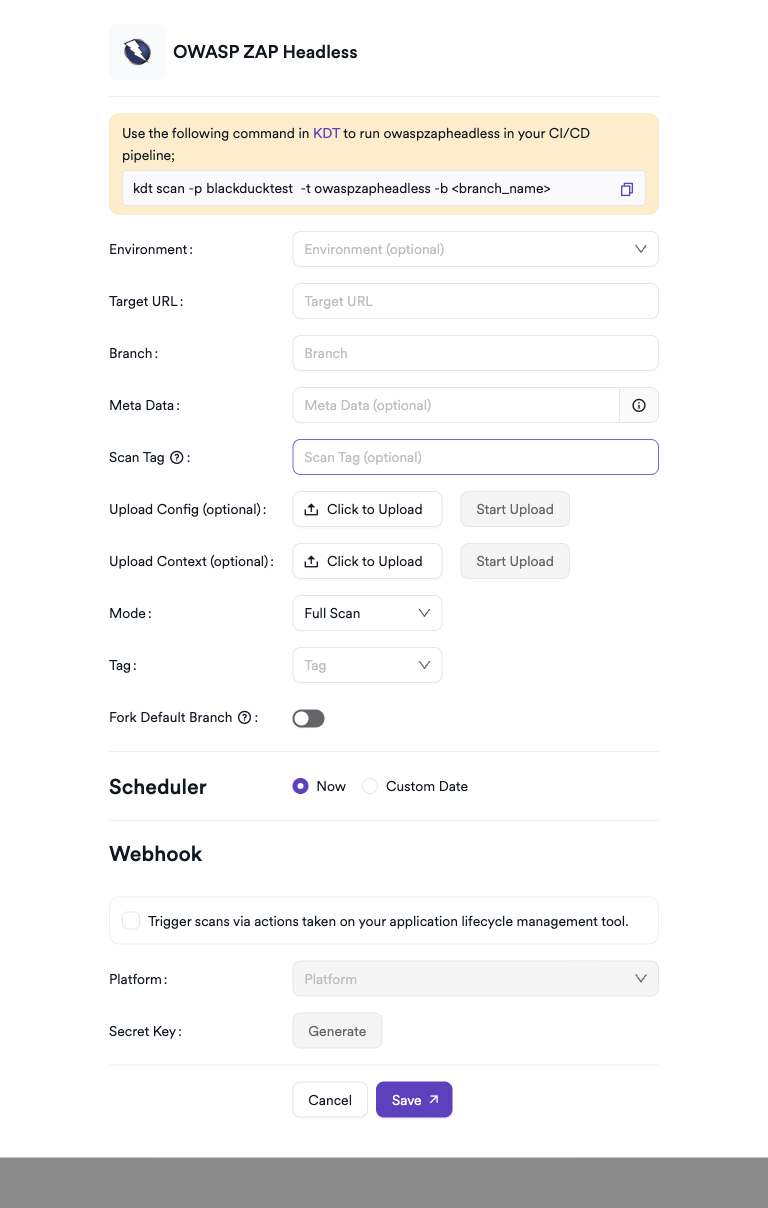
Scheduler
Enable the Scheduler toggle to run scans on a recurring schedule.
Webhook (Optional)
Add a webhook URL to receive scan completion notifications.
KDT Command
kdt scan -p <project_name> -t zapheadless -b <branch_name>
Troubleshooting
Scan Issues
| Issue | Resolution |
|---|---|
| Agent not available | Ensure the Invicti agent is installed, running, and connected |
| Docker not found | Install Docker on the agent host and ensure the daemon is running |
| Target not reachable | Verify the target URL is accessible from the agent host |
| Image pull failed | Check internet access from the agent host to Docker Hub |
| API scan incomplete | Verify the OpenAPI/Swagger spec URL is valid and accessible from the agent |
| Scan timeout | Reduce the scan scope or increase the timeout setting |
Best Practices
- Use ZAP Headless for CI/CD pipeline automation where no GUI access is needed.
- Provide an OpenAPI or Swagger specification to enable targeted API security testing.
- Pin to a specific ZAP Docker image version for consistent, reproducible scan results.
- Use Baseline scan mode in pull request pipelines for fast feedback.
- Reserve Full scan mode for nightly or weekly scheduled scans.
- Combine with a SAST scanner for comprehensive security coverage.
Limitations
- ZAP Headless requires Docker to be installed on the agent host.
- The target application must be reachable from the agent host network.
- Headless mode has limited interaction with complex JavaScript-heavy single-page applications.
- Authenticated scan configuration requires scripting and must be set up separately.
- Results may include false positives; manual triage is recommended for production findings.
Need help?
Invicti Support team is ready to provide you with technical help. Go to Help Center