Package: Invicti AppSec Core (on-demand), Invicti AppSec Enterprise (on-premise, on-demand)
Fortify WebInspect DAST/API Integration
Fortify WebInspect (also known as Micro Focus WebInspect) is a comprehensive dynamic application security testing tool that performs automated scanning of web applications and services. This integration allows Invicti AppSec to connect to a WebInspect server and trigger scans or import results via the KDT agent.
Prerequisites
| Field | Description |
|---|---|
| URL | Base URL of your WebInspect server (e.g., https://webinspect.your-company.com) |
| Username | Username for WebInspect server authentication |
| Password | Password for the WebInspect user account |
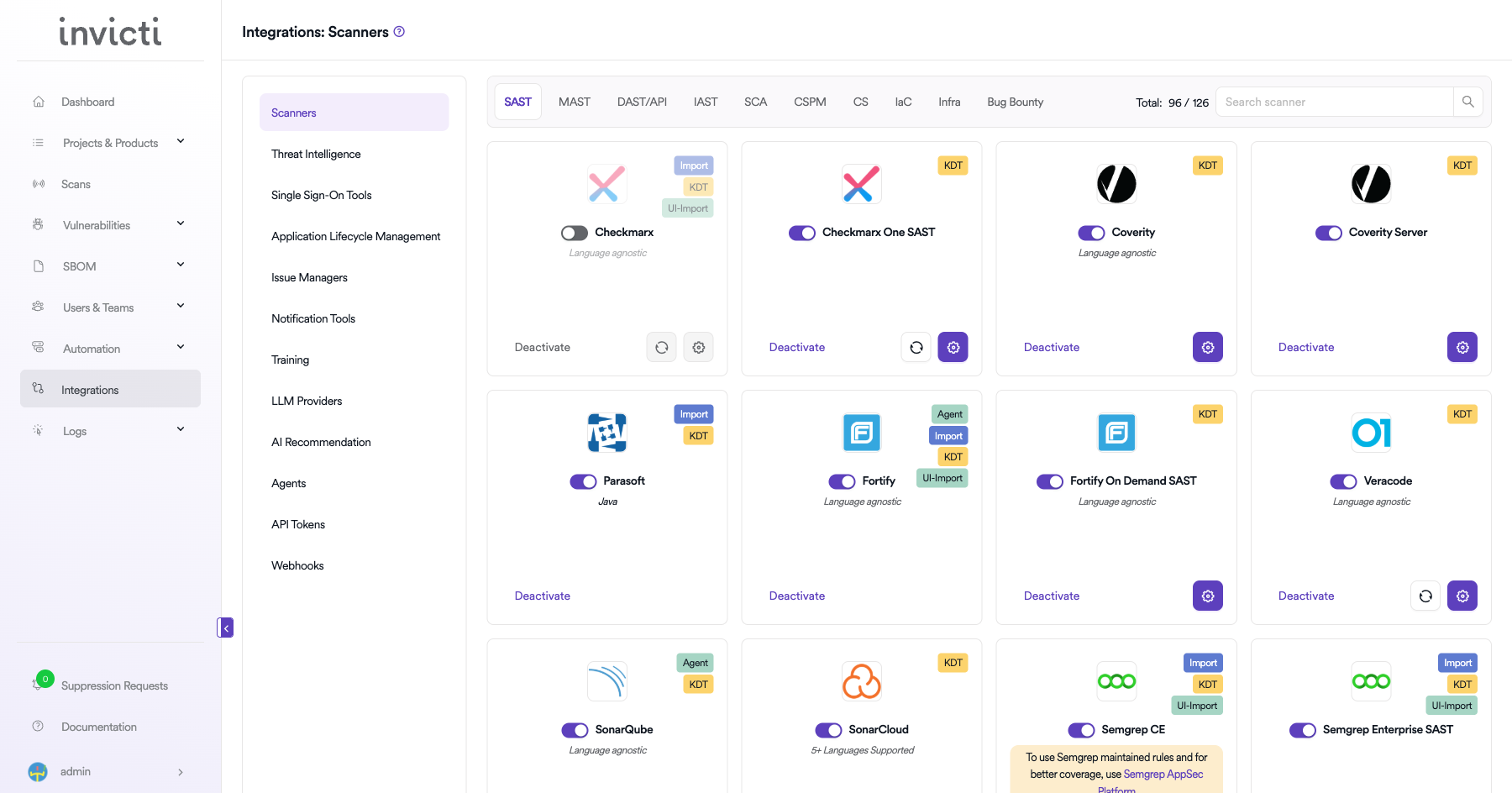
Step 1: Navigate to Integrations
From the left sidebar menu, click on Integrations.
Step 2: Select the DAST/API Tab
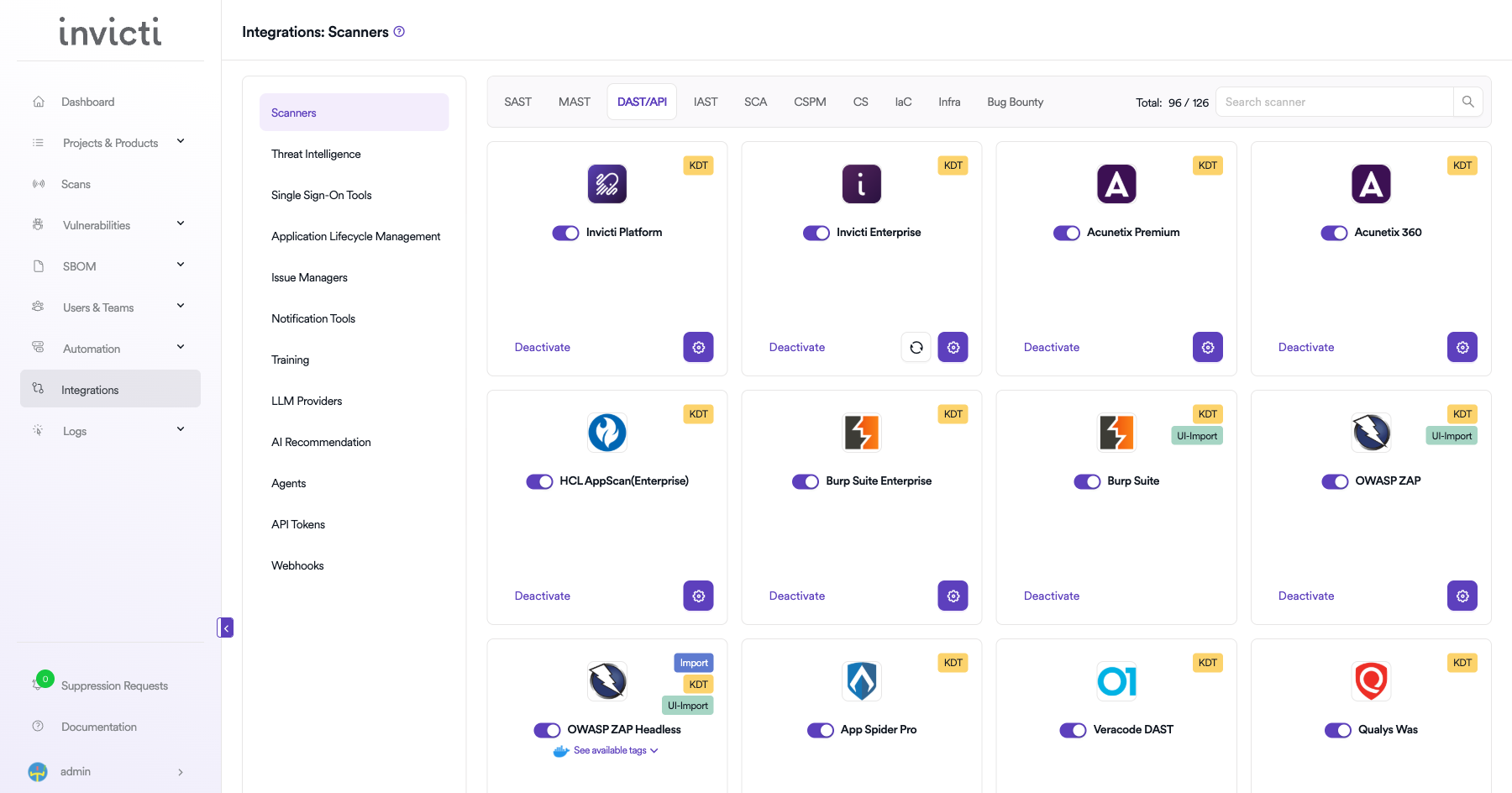
On the Integrations > Scanners page, click on the DAST/API tab.
Step 3: Find and Activate Fortify WebInspect
Scroll through the list of DAST/API scanners to find Fortify WebInspect.
- If Fortify WebInspect is not activated, you will see an "Activate" button. Click it to enable the integration.
The scan method badge on the Fortify WebInspect card shows KDT, which means scans are triggered through the Kondukto CLI tool (KDT).
Step 4: Configure Connection Settings
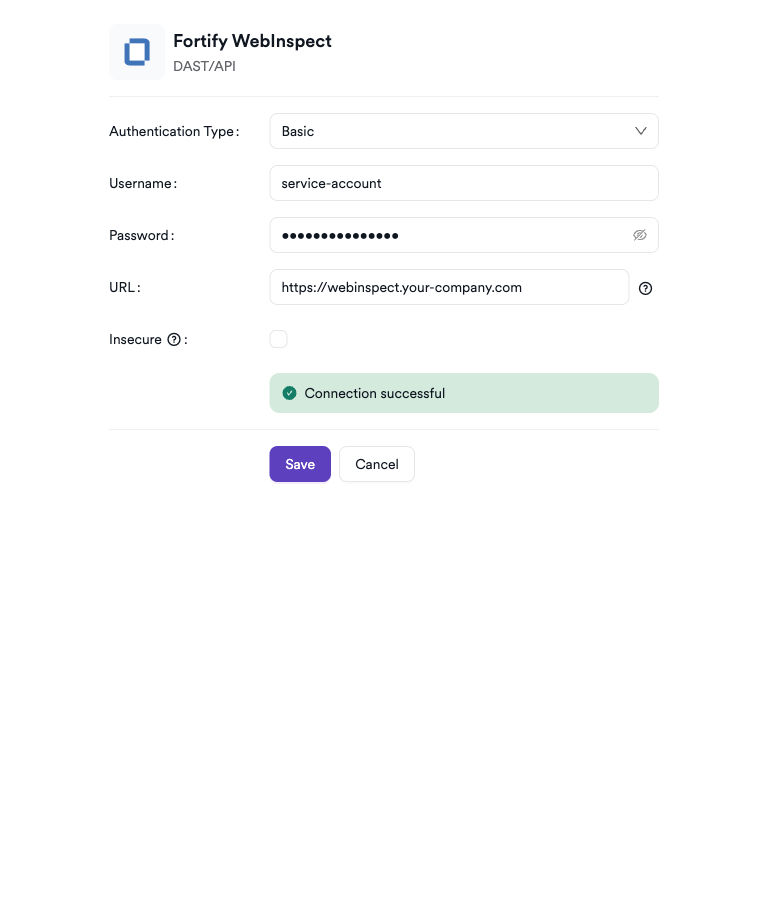
Click on the gear icon on the Fortify WebInspect card to open the configuration panel. Fill in the required fields:
- Authentication Type: Select the authentication method (Basic for username/password authentication).
- Username: Enter your WebInspect service account username.
- Password: Enter your WebInspect service account password.
- URL: Enter the base URL of your WebInspect server (e.g.,
https://webinspect.your-company.com). - Insecure: Enable this checkbox only if your WebInspect instance uses a self-signed SSL certificate.
Step 5: Test the Connection
Click Test Connection. A green Connection successful message confirms the credentials are valid.
Summary
| Step | Action |
|---|---|
| 1 | Navigate to Integrations from the sidebar |
| 2 | Select the DAST/API tab |
| 3 | Activate Fortify WebInspect |
| 4 | Enter URL, Username, and Password |
| 5 | Test the connection |
Create a Scan
Navigate to Project Scanners
- Open a project in Invicti AppSec.
- Go to Settings > Scanners.
- Click Add Scanner.
Add Fortify WebInspect Scanner
- Select DAST/API as the scanner type.
- Choose Fortify WebInspect from the scanner list.
- Click Add to open the scan configuration drawer.
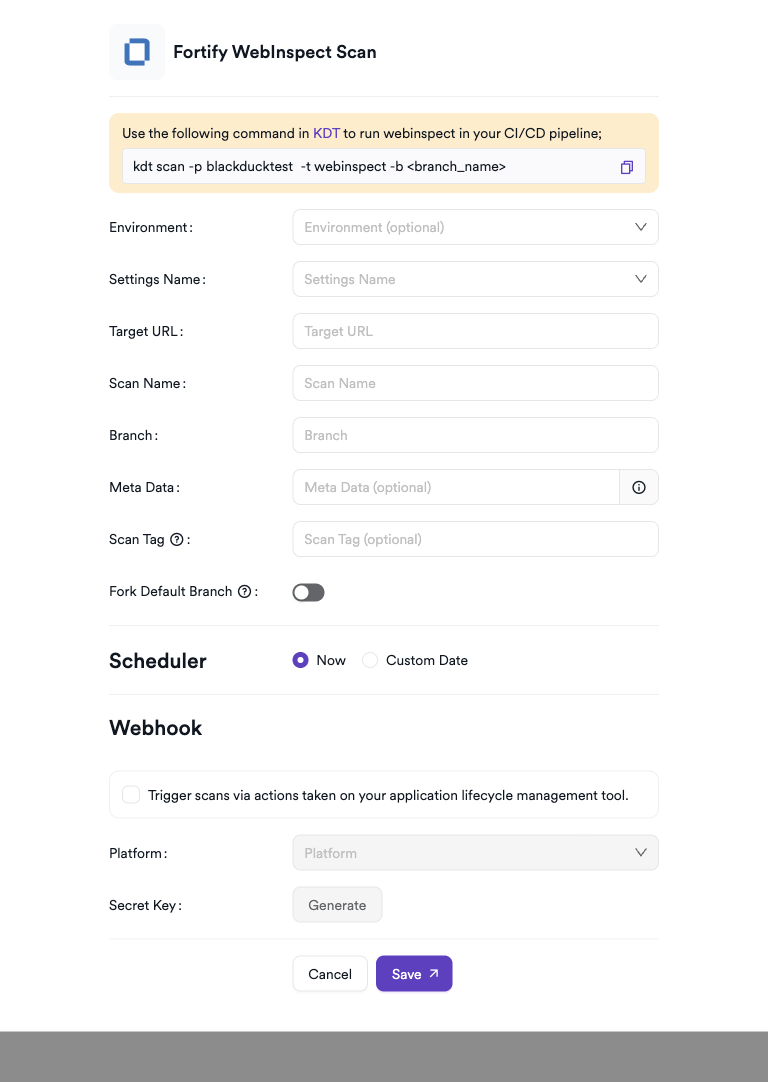
Scan Configuration Fields
| Field | Description | Required |
|---|---|---|
| Environment | Select the environment for the scan | No |
| Settings Name | WebInspect scan settings preset to use | Yes |
| Target URL | Web application URL to scan | Yes |
| Scan Name | Display name for this scan | Yes |
| Branch | Source code branch associated with this scan | No |
| Meta Data | Additional metadata for the scan | No |
| Scan Tag | Tag to identify the scan | No |
Scheduler
Enable the Scheduler toggle to run scans on a recurring schedule.
Webhook (Optional)
Add a webhook URL to receive scan completion notifications.
KDT Command
kdt scan -p <project_name> -t webinspect -b <branch_name>
Troubleshooting
Connection Fails
| Issue | Resolution |
|---|---|
| Invalid credentials | Verify the username and password against the WebInspect server |
| URL unreachable | Ensure Invicti AppSec can reach the WebInspect server on the network |
| SSL certificate error | Enable the Insecure toggle if using a self-signed certificate |
| 403 Forbidden | The user account may lack API permissions on the WebInspect server |
Scan Issues
| Issue | Resolution |
|---|---|
| Agent/KDT not available | Ensure the Invicti agent or KDT is installed and connected |
| Target not reachable | Verify the target URL is accessible from the agent host network |
| Empty results | Check that the scan completed successfully in WebInspect before importing results |
Best Practices
- Use a dedicated service account with minimal required permissions for the WebInspect API.
- Avoid using personal credentials; create a dedicated integration user.
- Enable SSL validation in production; only use the Insecure toggle in test environments.
- Rotate credentials periodically or after personnel changes.
Limitations
- Requires network access from the Invicti AppSec server to the WebInspect server.
- Basic authentication is the supported authentication method.
- Concurrent scan limits are governed by your WebInspect license.
Need help?
Invicti Support team is ready to provide you with technical help. Go to Help Center