Package: Invicti AppSec Core (on-demand), Invicti AppSec Enterprise (on-premise, on-demand)
Nuclei DAST/API Integration
Nuclei is an open-source, fast, and customizable vulnerability scanner based on templates. It is used to scan web applications and APIs for a wide range of security vulnerabilities using community and custom YAML-based templates. In Invicti AppSec, Nuclei runs as a Docker container executed by the Invicti KDT or agent.
Nuclei is a Docker-based / KDT scanner in Invicti AppSec. No external credentials are required. Activation configures the Docker image to use; scans are executed by the Invicti KDT or agent on a host with Docker available.
Prerequisites
| Requirement | Description |
|---|---|
| Invicti Agent or KDT | An Invicti AppSec agent or KDT installed in the target environment |
| Target URL | The web application or API URL to scan |
| Docker | Docker must be available on the host where Nuclei runs (Nuclei runs as a Docker container) |
No external Nuclei account or API credentials are needed.
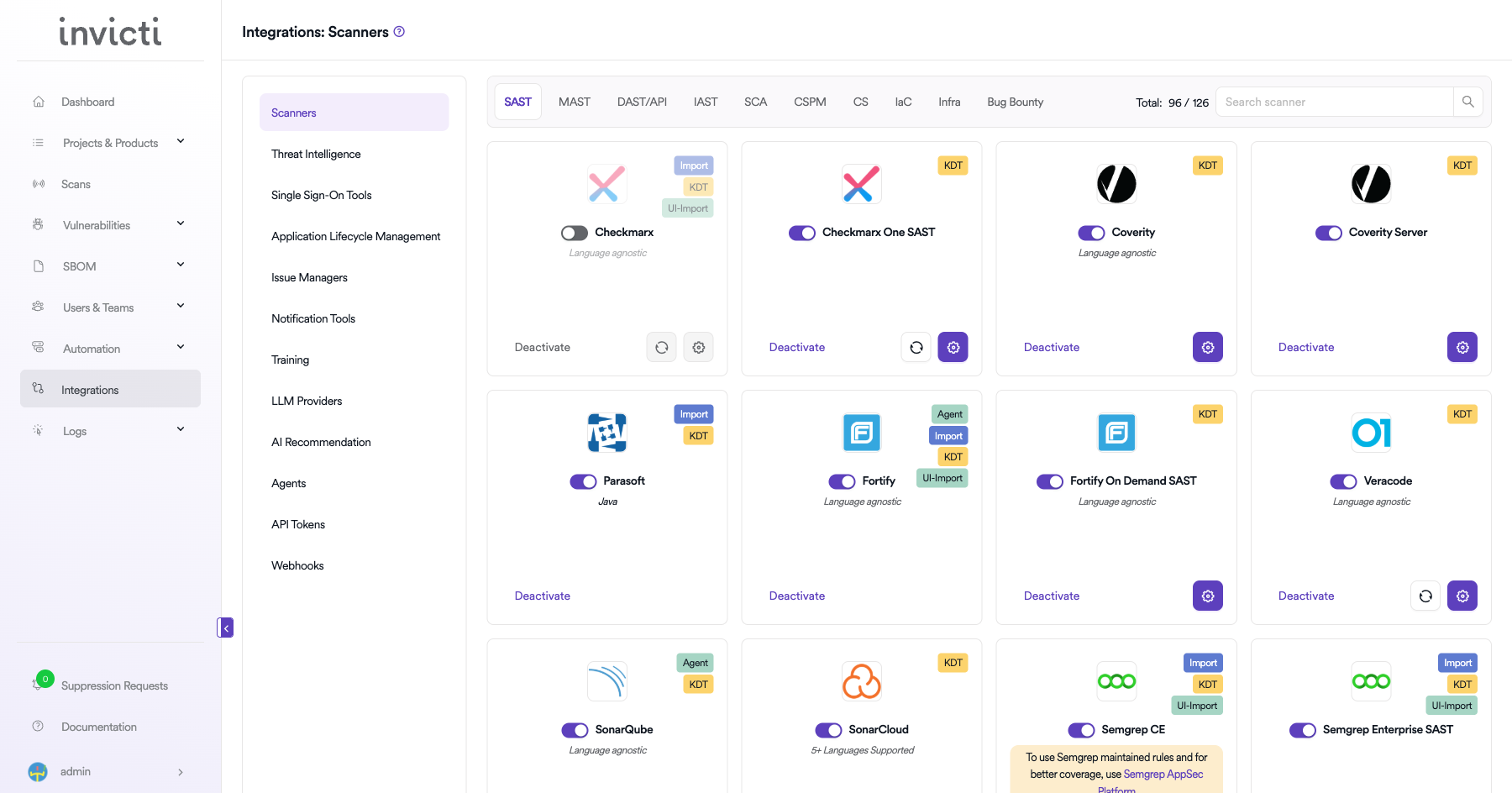
Step 1: Navigate to Integrations
From the left sidebar menu, click on Integrations.
Step 2: Select the DAST/API Tab
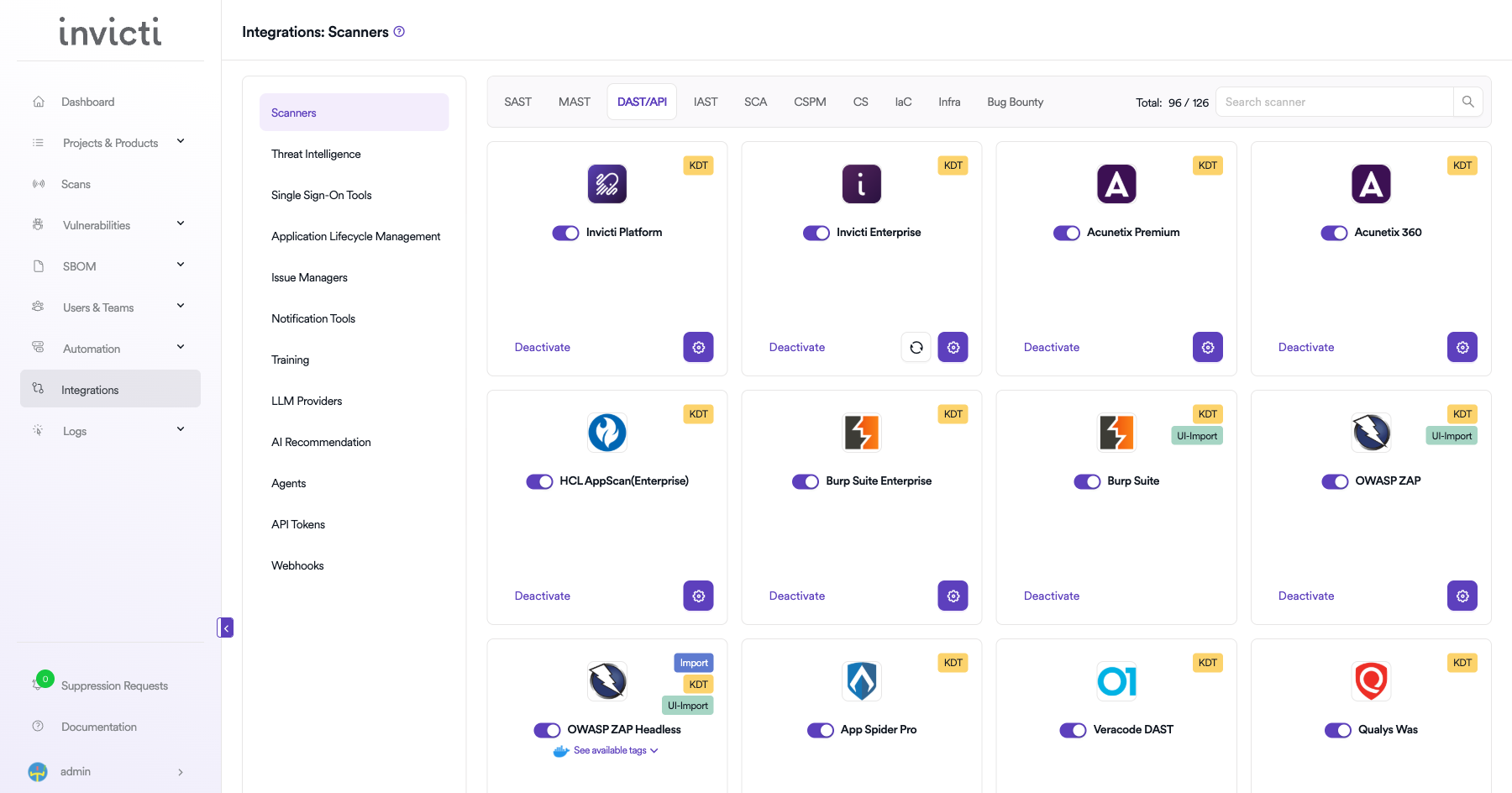
On the Integrations > Scanners page, click on the DAST/API tab.
Step 3: Find and Activate Nuclei
Scroll through the list of DAST/API scanners to find Nuclei.
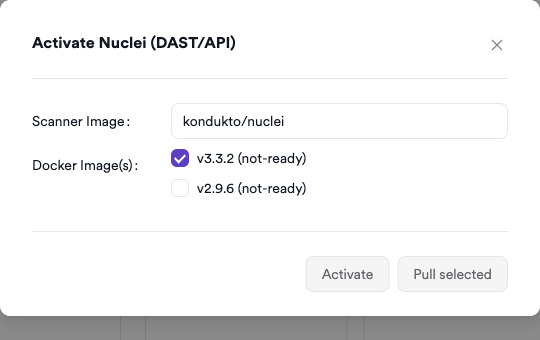
- If Nuclei is not activated, you will see an "Activate" button. Click it to open the Docker configuration modal.
The scan method badge on the Nuclei card shows KDT. Nuclei runs as a Docker container executed by the Invicti KDT or agent. No external API credentials are required.
Step 4: Configure Docker Settings
Click on the gear icon on the Nuclei card to open the configuration panel. Fill in the required fields:
- Scanner Image: The Docker image to use (default:
kondukto/nuclei). - Docker Images: Select the image tag versions to pull and make ready (e.g.,
v3.3.2,v2.9.6).
Click Pull Selected to pull the chosen Docker image tags to the agent host. Once at least one image tag shows ready status, click Activate to complete the integration.
Summary
| Step | Action |
|---|---|
| 1 | Navigate to Integrations from the sidebar |
| 2 | Select the DAST/API tab |
| 3 | Click Activate on the Nuclei card |
| 4 | Select Docker image tags, pull them, then click Activate |
Create a Scan
Navigate to Project Scanners
- Open a project in Invicti AppSec.
- Go to Settings > Scanners.
- Click Add Scanner.
Add Nuclei Scanner
- Select DAST/API as the scanner type.
- Choose Nuclei from the scanner list.
- Click Add to open the scan configuration drawer.
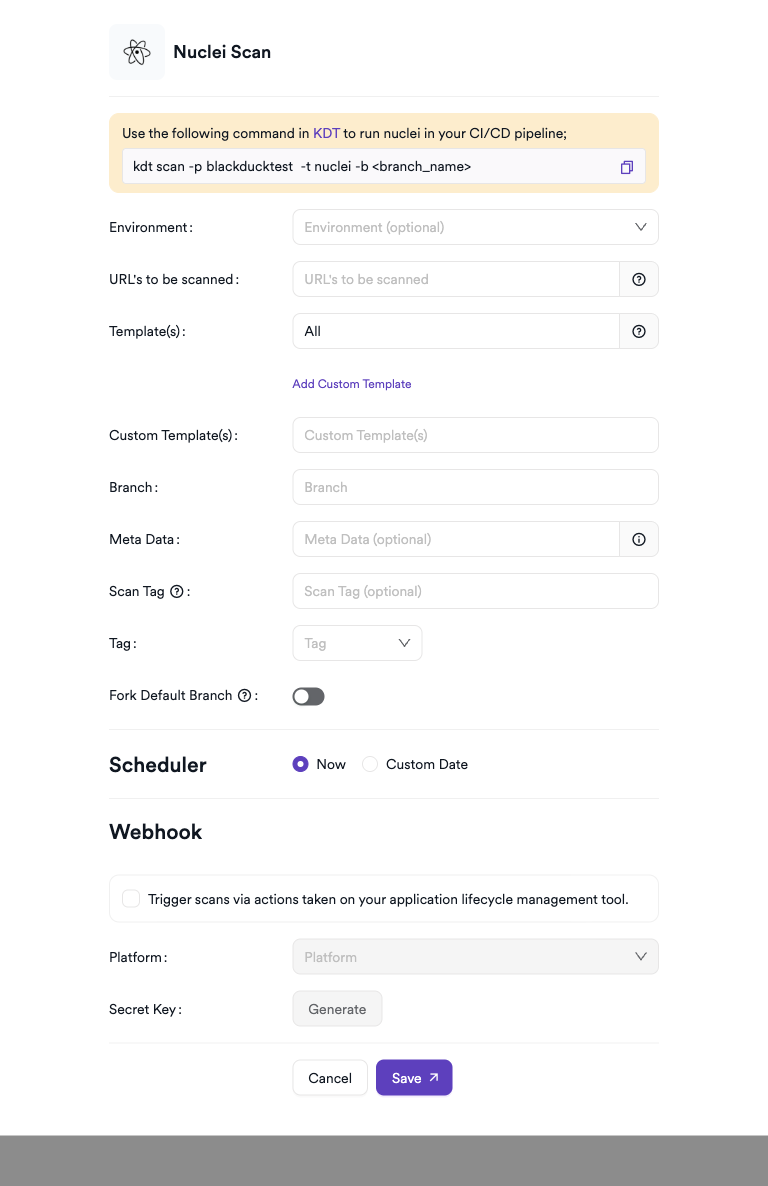
Scan Configuration Fields
| Field | Description | Required |
|---|---|---|
| Environment | Select the environment for the scan | No |
| URL's to be scanned | Web application or API URLs to scan (comma-separated) | Yes |
| Template(s) | Nuclei template tags to use (default: All; e.g., cves, exposures) | No |
| Custom Template(s) | Additional custom Nuclei templates to include | No |
| Tag | Nuclei Docker image tag to use (e.g., v3.3.2, v2.9.6) | Yes |
| Branch | Source code branch associated with this scan | No |
| Meta Data | Additional metadata for the scan | No |
| Scan Tag | Tag to identify the scan | No |
Scheduler
Enable the Scheduler toggle to run Nuclei scans on a recurring schedule.
Webhook (Optional)
Add a webhook URL to receive scan completion notifications.
KDT Command
kdt scan -p <project_name> -t nuclei -b <branch_name>
Troubleshooting
Activation Issues
| Issue | Resolution |
|---|---|
| Docker images not loading in modal | Ensure the AppSec server can reach Docker Hub to list available kondukto/nuclei tags |
| Pull Selected fails | Verify Docker daemon is running and the agent/KDT host has internet access to Docker Hub |
| No image shows ready status | Wait for the pull to complete; large images may take several minutes |
Scan Issues
| Issue | Resolution |
|---|---|
| Agent/KDT not available | Ensure the Invicti agent or KDT is installed and connected to Invicti AppSec |
| Docker not found | Install Docker on the agent host and ensure the daemon is running |
| Image pull failed | Check internet access from the agent host to Docker Hub for pulling the Nuclei image |
| Target not reachable | Verify the target URL is accessible from the agent host network |
| Empty results | Ensure the specified templates match vulnerabilities relevant to the target application |
| Too many results | Use severity filters (-severity high,critical) and scope templates to reduce noise |
Best Practices
- Pin the Nuclei Docker image to a specific version for reproducible scan results.
- Use severity filters (
high,critical) in CI/CD pipelines to focus on actionable findings. - Regularly update the Nuclei template library to detect the latest CVEs.
- Combine Nuclei with authentication headers or cookies for authenticated endpoint scanning.
- Use tag-based template selection (
cves,exposures,technologies) to tailor scans to the application stack.
Limitations
- Nuclei scanning depth is limited by template coverage; custom templates may be needed for proprietary applications.
- The Docker image size may affect agent host disk usage; manage image cleanup periodically.
- Nuclei is signature-based; it may miss vulnerabilities not covered by existing templates.
- Authenticated scanning requires passing session tokens or cookies manually in the scan configuration.
- High-volume scans against rate-limited APIs may trigger WAF or API gateway blocks.
Need help?
Invicti Support team is ready to provide you with technical help. Go to Help Center