Integrating Invicti Standard with Jira
Jira is an issue tracking software application with agile project management and bug tracking features. Jira allows you to order and prioritize issues and bugs, as well as add issue types, fields and workflows as the project develops. It also shares customer support tickets with other issue tracking systems.
This topic explains how to configure Invicti Standard to send a detected vulnerability to Jira, enabling seamless integration with your agile project management workflow for efficient vulnerability issue tracking and remediation management.
Jira Fields
The following table lists and describes the Jira fields available in the Send To Actions configuration:
| Button/Section/Field | Description |
|---|---|
| Add | Click to add an integration. |
| Delete | Click to delete the integration and clear all fields. |
| Configure Send To | Click to configure the integration using the Settings Wizard instead of doing it manually. |
| Create Sample Issue | Once all relevant fields have been configured, click to create a sample issue. |
| Action | This section contains general fields about the Send to Action. |
| Display Name | This is the name of the configuration that will be shown in menus. |
| Mandatory | This section contains fields that must be completed. |
| URL | This is the Jira API instance URL. |
| Username or Email | This is the username if self-hosted. This is the username or email address if Atlassian hosted. |
| API Token or Password | This is the user's Jira API access token or the password. The API token can be retrieved from https://id.atlassian.com/manage/api-tokens. |
| Project Key | This is the project in which to create issues. |
| Issue Type | This is the name of the issue type: Task, Sub-task, Bug, Epic, Story |
| Vulnerability | This section contains fields with vulnerability details. |
| Body Template | This is the template file that is used to create description fields. |
| Title Format | This is the string format that is used to create the vulnerability title. |
| Optional | This section contains optional fields. |
| Reporter | This is the username of the person who reports issues. |
| Reporter Account ID | This is the Reporter Account ID of the person who reports issues. |
| Assigned Account ID | This is the Jira account ID to which issues are assigned. |
| Assigned To | This is the user to whom the issue is assigned. |
| Priority | This priority of the bug: Major, Highest |
| Custom Fields | Click the ellipsis to open the Custom Fields Editor dialog. |
| Due Days | This is the number of days from the date the issue was created to the day it's due. |
| Labels | These are the issue labels. To add more than one label, please add a comma (,) between each one. For example Label1, Label2, etc. |
| Security Level | This indicates which group can view the issue in Jira. |
| Epic Name | This is a short title for the epic that is used as a label on issues that belong to it. It is required when Epic is selected as the Issue Type. |
| Epic Key | This is a text identifier for the Epic. It is required to create issues that belong to an epic. |
| Components | This is the component name. To add more than one component, please add a comma (,) between each one. For example Component1, Component2 etc. |
How to Integrate Invicti Standard with Jira
Follow these steps to configure Jira integration for automated vulnerability issue creation:
- Open Invicti Standard
- From the Home tab on the ribbon, click Options. The Options dialog is displayed
- Click Send To Actions
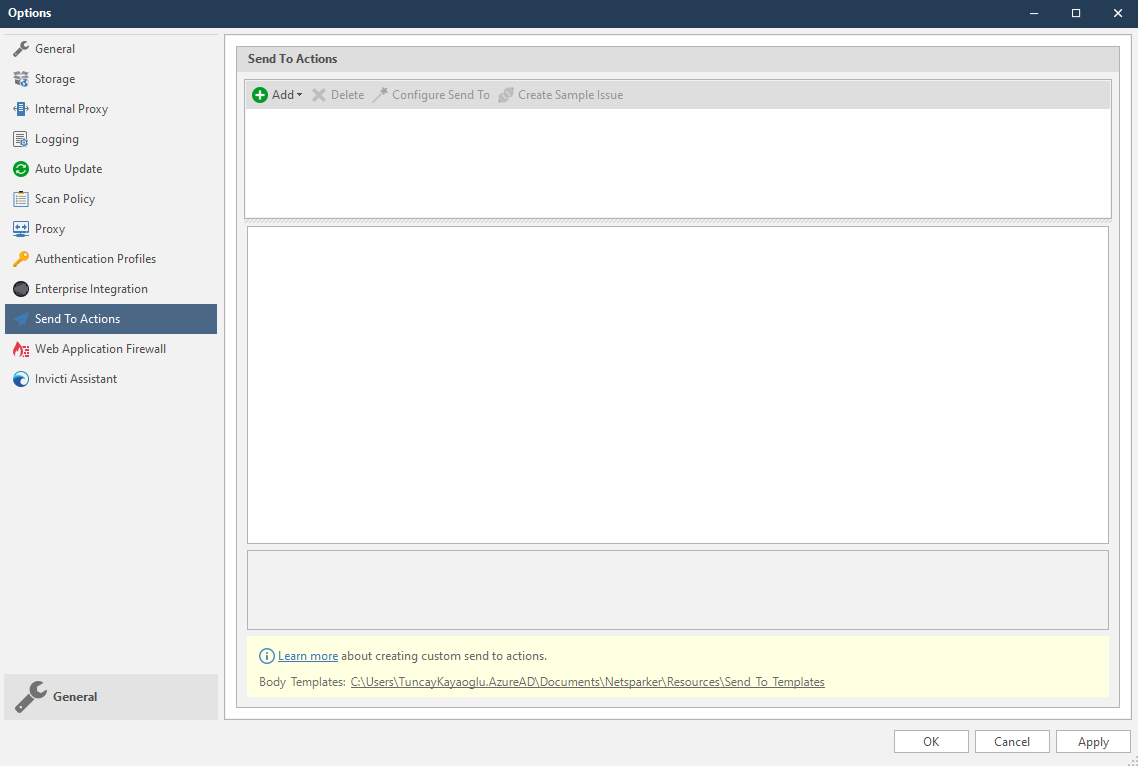
- From the Add dropdown, select JIRA. The Jira fields are displayed
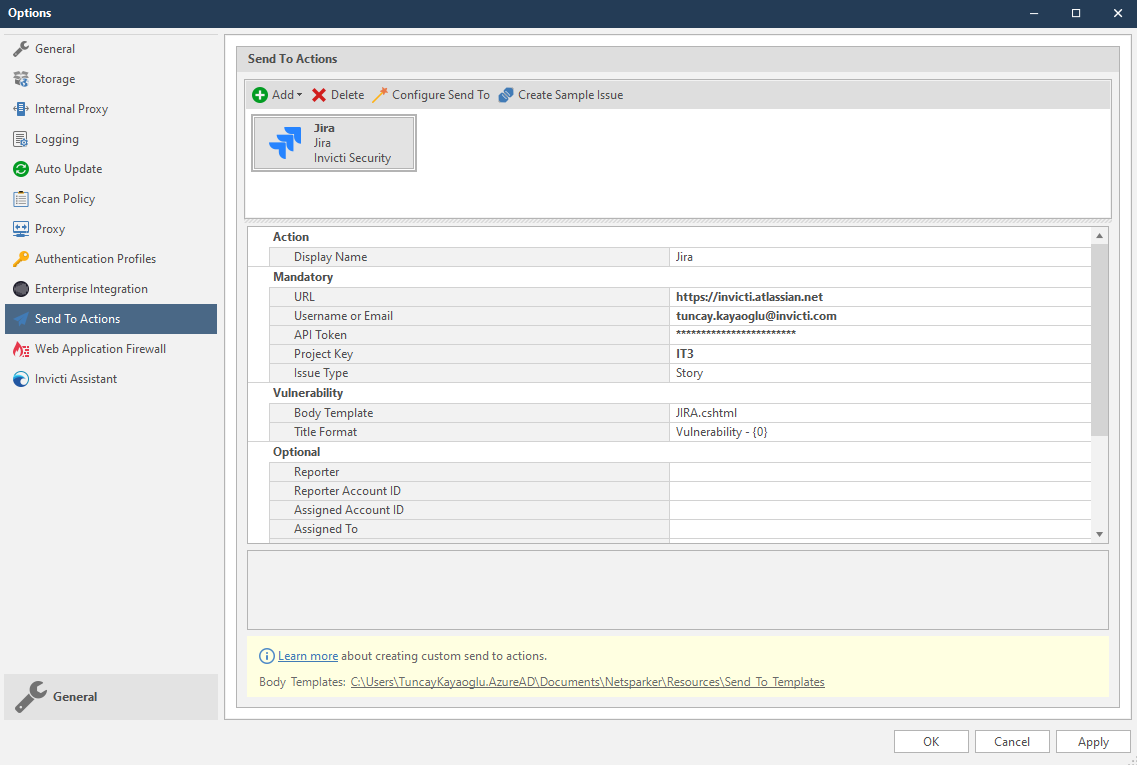
- In the Mandatory section, complete the connection details:
- URL
- Username or Email
- API Token
- Project Key
- Issue Type
- Epic Name
- Epic Key
- Components
To learn about API token creation in Jira, read API tokens. To learn about issue types in Jira, read Issue types.
- In the Vulnerability section you can change the Body Template and Title format
Body templates are stored in %userprofile%\Documents\Invicti\Resources\Send To Templates. If you use your own custom templates, store them in this location.
-
In the Optional settings you can specify:
- Reporter
- Reporter Account ID
- Assigned Account ID
- Assigned To
- Priority
- Custom Fields
- Due Days
- Labels
- Security Level
-
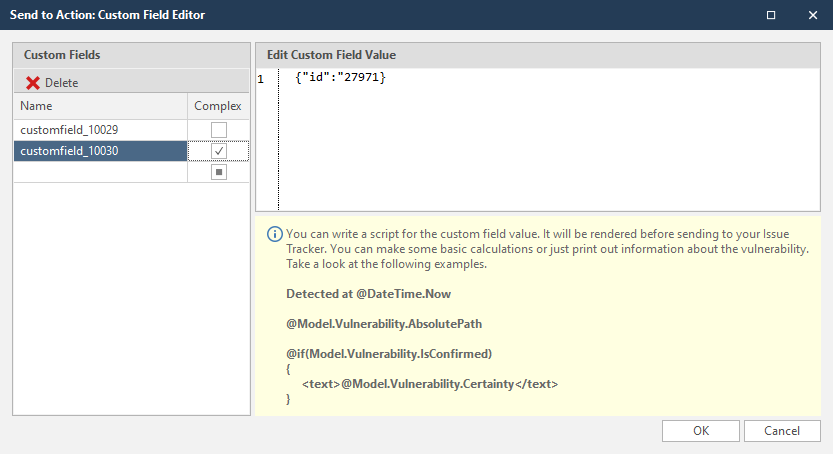
To set custom field values, in the Custom Fields field, click the ellipsis button
-
In the Edit Custom Field Value field, enter the relevant value (examples shown):
- Name: 'customfield_100XX' (replace with your custom field value)
- Value: {"id": "27971"}
- Complex: Checked
- Click OK
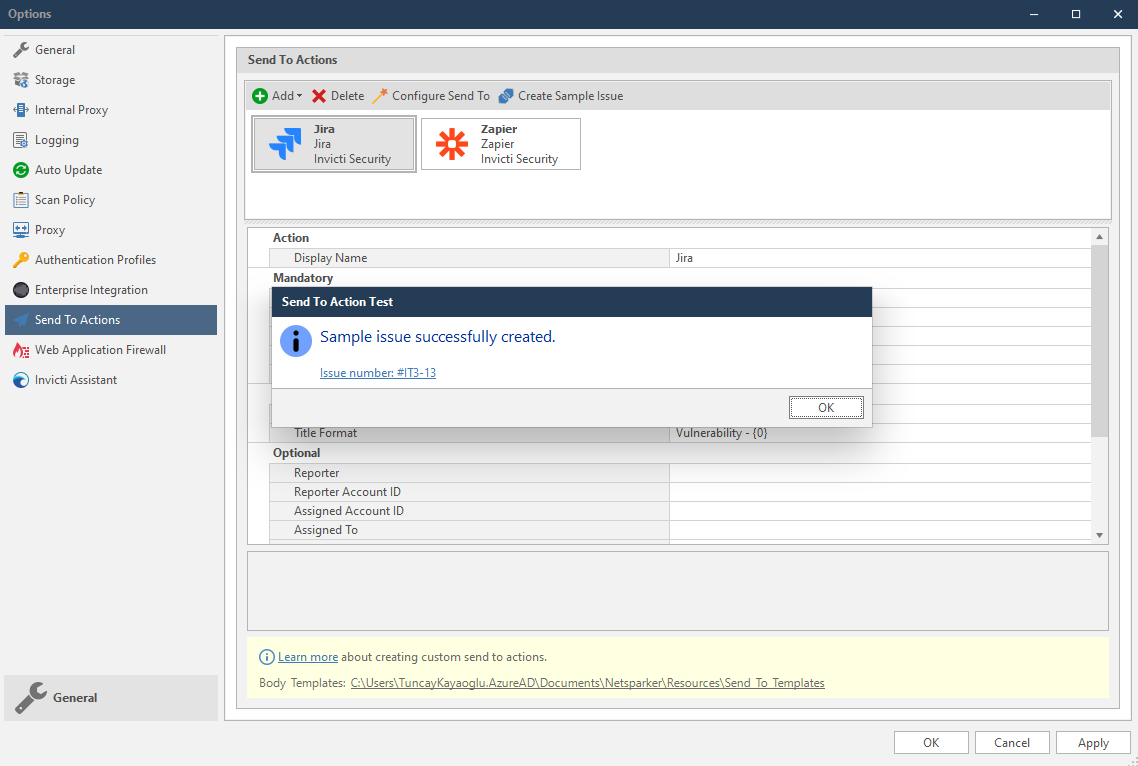
- Click Create Sample Issue to confirm that Invicti Standard can connect to the configured system. The Send To Action Test confirmation dialog is displayed
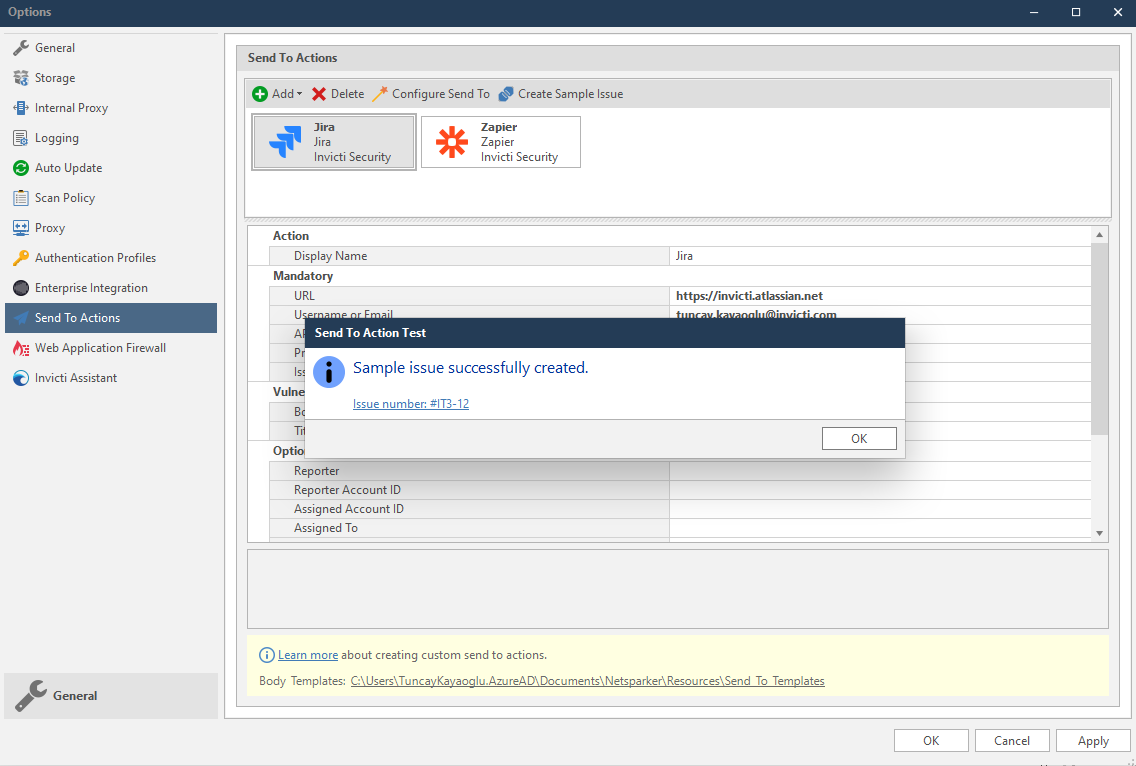
- In the Send To Action Test dialog, click the Issue number link to open the issue in Jira in the default browser
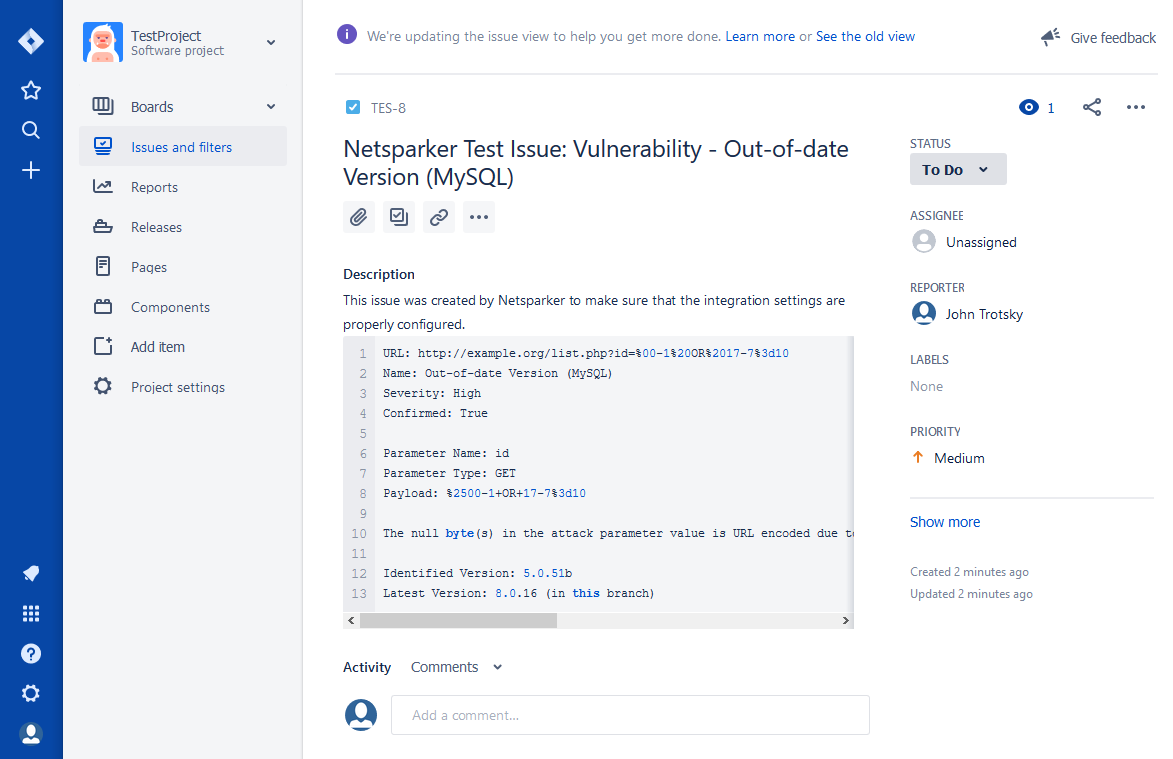
How to Integrate Invicti Standard with Jira Using the Wizard
Instead of configuring the settings manually, the configuration wizard can help you with the settings:
- Open Invicti Standard
- From the Home tab on the ribbon, click Options. The Options dialog is displayed
- Click Send To Actions
- From the Add dropdown, select JIRA. The Jira fields are displayed
- Click Configure Send To to launch the wizard. The Send To Configuration Dialog is displayed
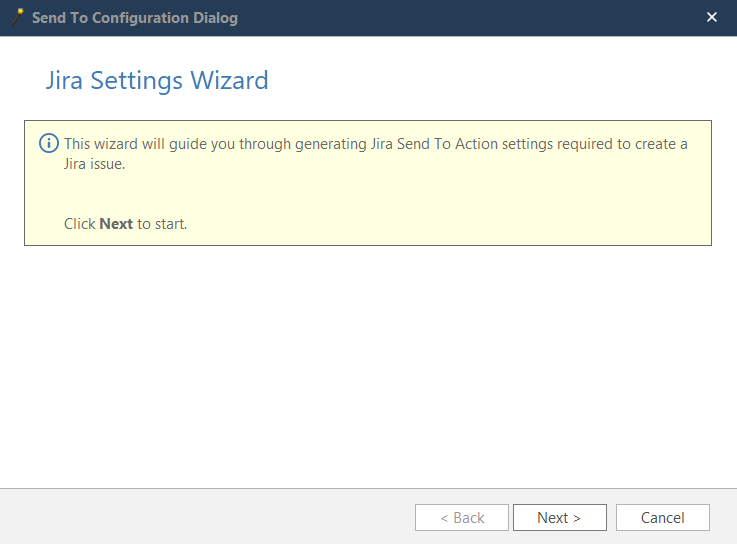
- Click Next. The Authentication step is displayed
- Complete the URL and API Access Key fields, and click Test Credentials
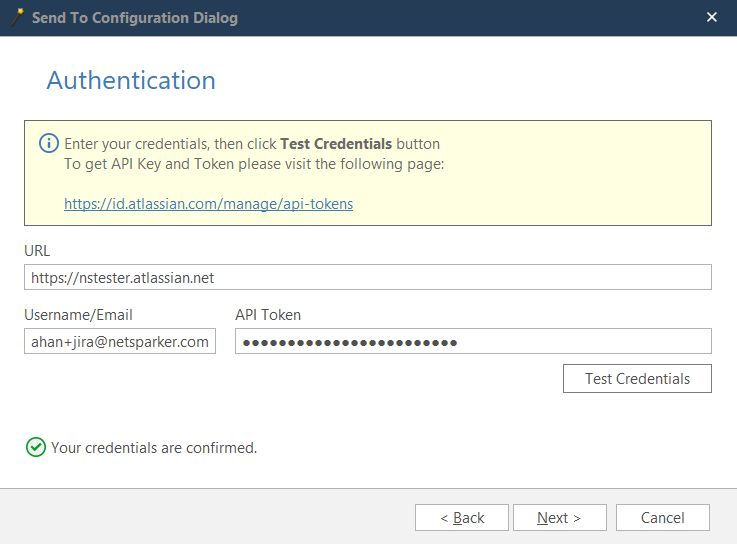
- When the confirmation message, Your credentials are confirmed, is displayed, click Next. The Project step is displayed
- Select a project, and click Next. The Issue Type step is displayed
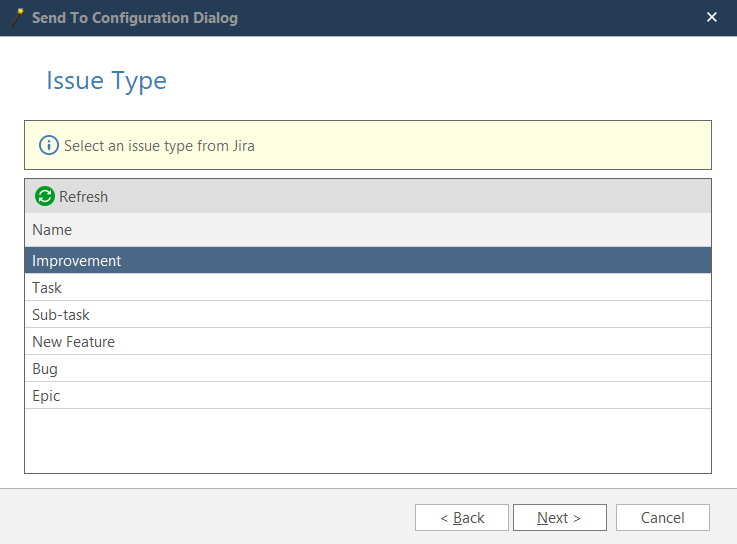
- After selecting Issue Type please click to Next. The Reporter step is displayed
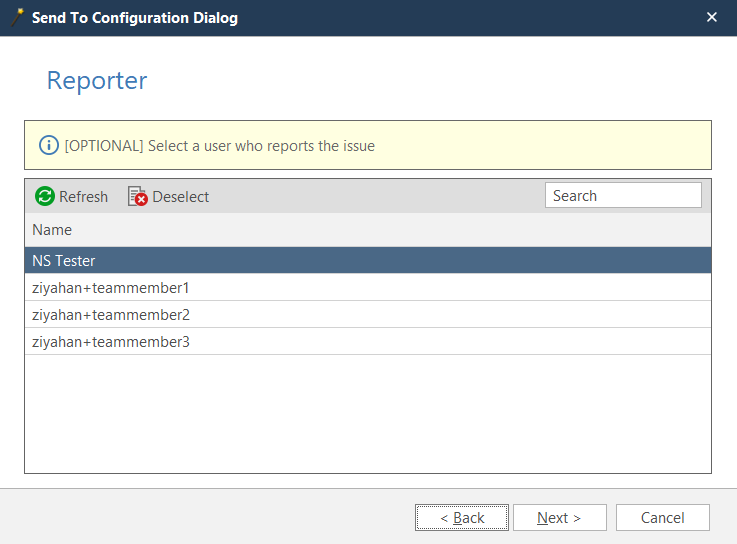
- After selecting Reporter, please click Next to select Assignee
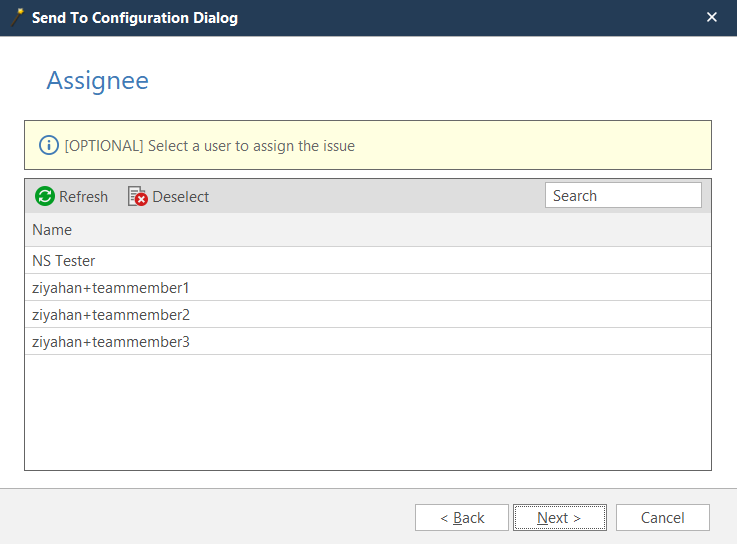
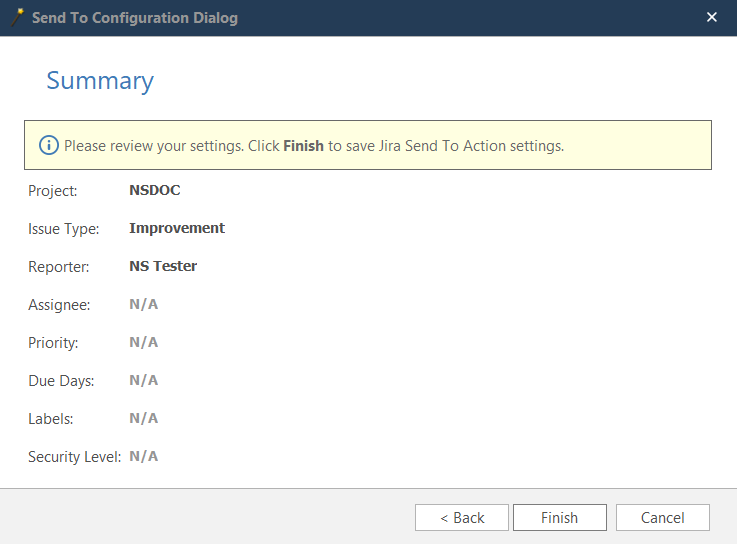
- If required, complete Security Level, Labels and Other Fields, and click Next. The Summary step is displayed
-
Review your settings, and click Finish. The Settings are applied automatically. You are returned to the Send To Actions fields
-
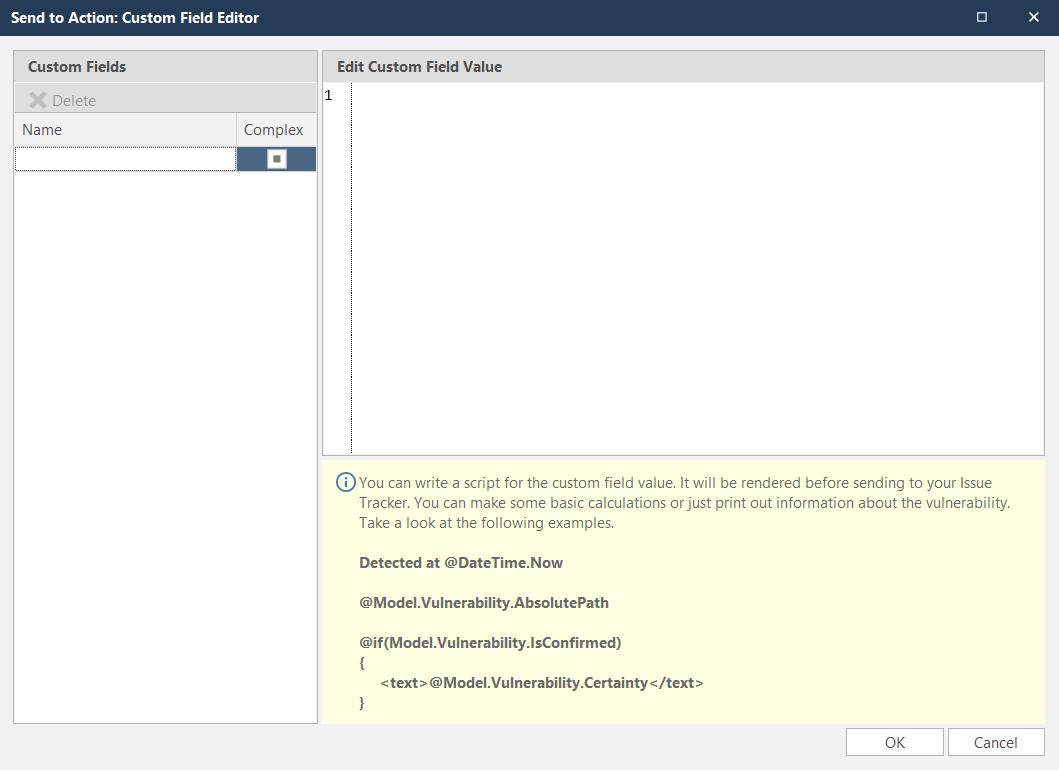
To set custom field values, in the Custom Fields field, click the ellipsis button
-
In the Edit Custom Field Value field, enter the relevant value
- Click OK
- Click Create Sample Issue to confirm that Invicti Standard can connect to the configured system. A Send To Action Test confirmation dialog is displayed
- In the Send To Action Test dialog, click the Issue number link to open the issue in Jira in the default browser
How to Export Reported Vulnerabilities to Projects in Jira
After configuring the Jira integration, follow these steps to export specific vulnerabilities:
Please ensure that you have first configured Jira integration (see How to Integrate Invicti Standard with Jira).
- Open Invicti Standard
- From the ribbon, select the File tab. Local Scans are displayed. Double-click the relevant scan to display its results
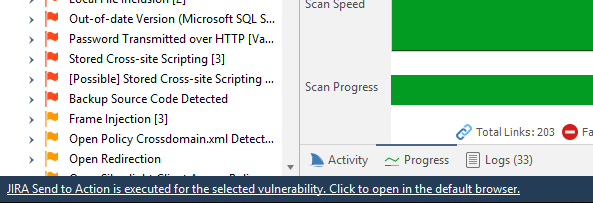
- In the Issues panel, right click the vulnerability you want to export and select Send to Jira. (Alternatively, from the ribbon, click the Vulnerability tab, then Send to Jira.) A confirmation message and link is displayed at the bottom of the screen
-
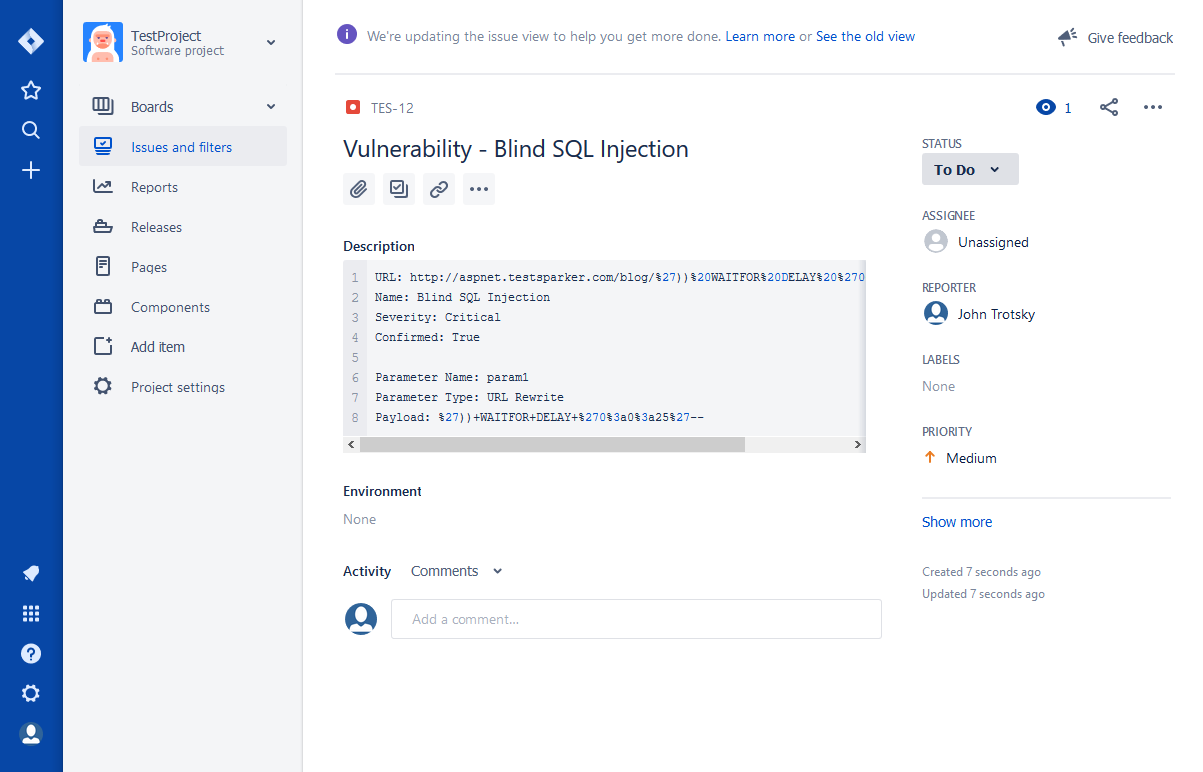
Click the Jira Send to Action is executed for the selected vulnerability link to see the newly-created issue in Jira
-
The vulnerability is now automatically exported to Jira. You can view it in Jira's Issues and Filters tab
Need help?
Invicti Support team is ready to provide you with technical help. Go to Help Center