Integrating Invicti Standard with Kenna
Kenna is an issue tracking system that calculates which vulnerabilities present the highest risk and de-prioritizes those that don't, then notifies the right people of the top vulnerabilities to achieve the greatest possible risk reduction.
This document explains how to configure Invicti Standard to send a detected vulnerability to Kenna for enhanced vulnerability management and risk assessment.
For further information, see Configuring the User Interface for Custom Send To Actions in Invicti Standard and Configuring Auto Send To Actions in Invicti Standard and What Systems Does Invicti Integrate With? external documentation.
Kenna Fields
This table lists and explains the Kenna fields in the Send To Actions tab.
| Button/Section/Field | Description |
|---|---|
| Add | Click to add an integration. |
| Delete | Click to delete the integration and clear all fields. |
| Create Sample Issue | Once all relevant fields have been configured, click to create a sample issue. |
| Action | This section contains general fields about the Send to Action. |
| Display Name | This is the name of the configuration that will be shown in menus. |
| Mandatory | This section contains fields that must be completed. |
| Instance URL | This is the Kenna instance URL. |
| API URL | This is the Kenna API URL. |
| API Key | This is the API Access Key for authentication. |
| Vulnerability | This section contains fields with vulnerability details. |
| Body Template | This is the template file that is used to create description fields. |
| Title Format | This is the string format that is used to create the vulnerability title. |
| Optional | This section contains optional fields. |
| Due Days | This is the number of days between the date the issue was created to the date it's due. |
| Custom Fields | These are the custom fields that are defined for the project. |
| Asset's Application Identifier | Enable the Set Asset's Application Identifier to provide further information for the asset that the vulnerability belongs to. |
How to Integrate Invicti Standard with Kenna
Follow these steps to configure the Kenna integration in Invicti Standard:
- Open Invicti Standard
- From the Home tab on the ribbon, click Options. The Options dialog is displayed.
- Click Send To Actions.
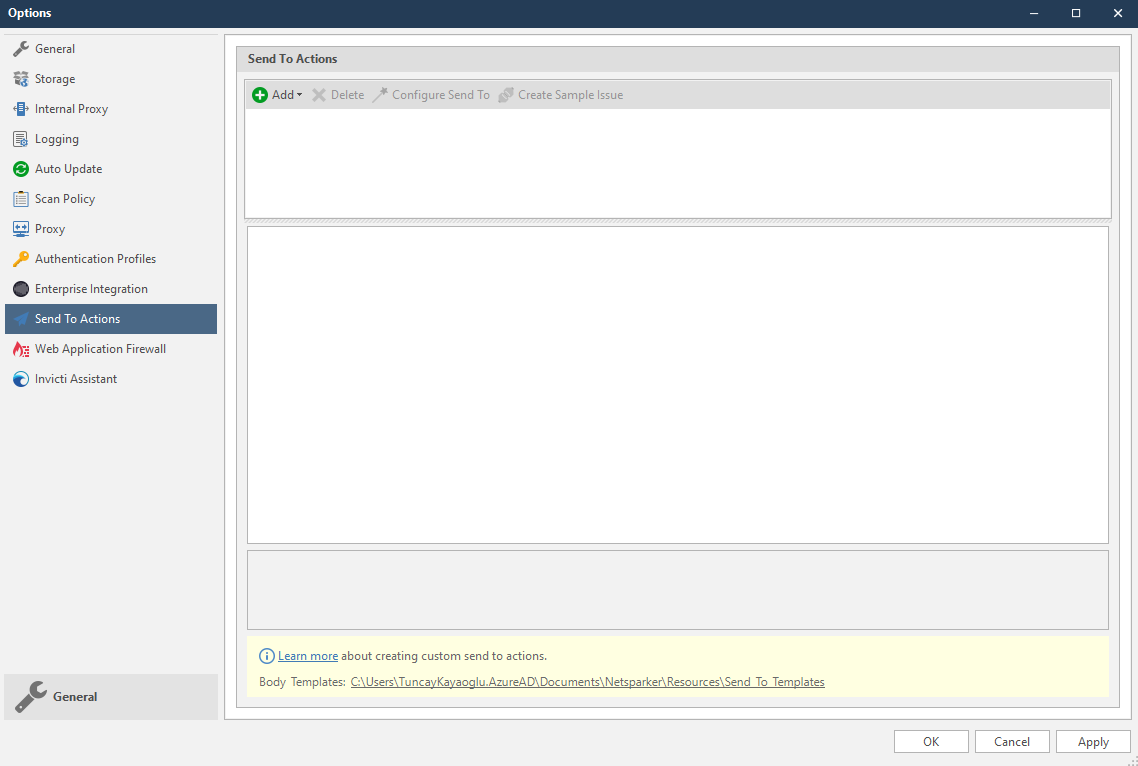
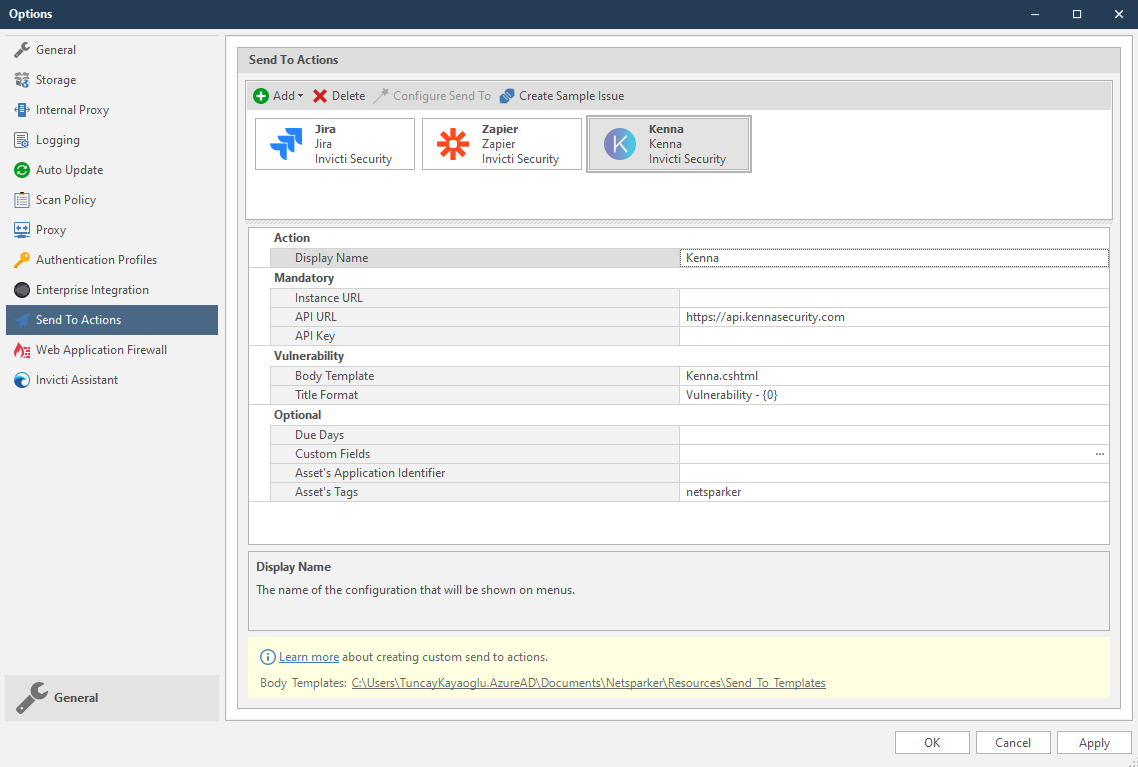
- From the Add dropdown, select Kenna. The Kenna fields are displayed.
-
In the Mandatory section, complete the connection details:
- Instance URL
- API URL
- API Key
-
In the Vulnerability section, you can change the default Body Template and Title Format.
Body templates are stored in %userprofile%\Documents\Invicti\Resources\Send To Templates. If you use your own custom templates, store them in this location.
-
In the Optional section, you can specify:
- Due Days
- Custom Fields
- Asset's Application Identifier
-
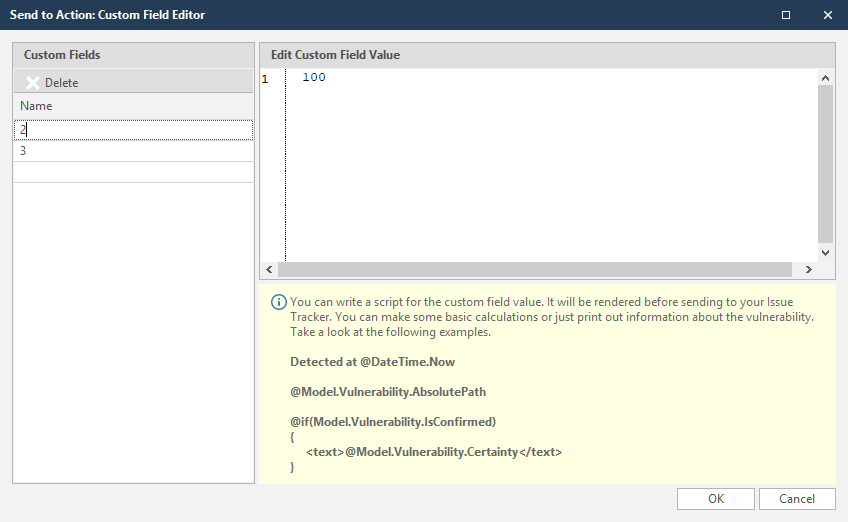
To set the custom field values, in the Custom Fields field, click the ellipsis button.
-
In the Edit Custom Field Value field, enter the relevant value.
- Click OK.
- Click Create Sample Issue to confirm that Invicti Standard can connect to the configured system. The Send To Action Test confirmation dialog is displayed.
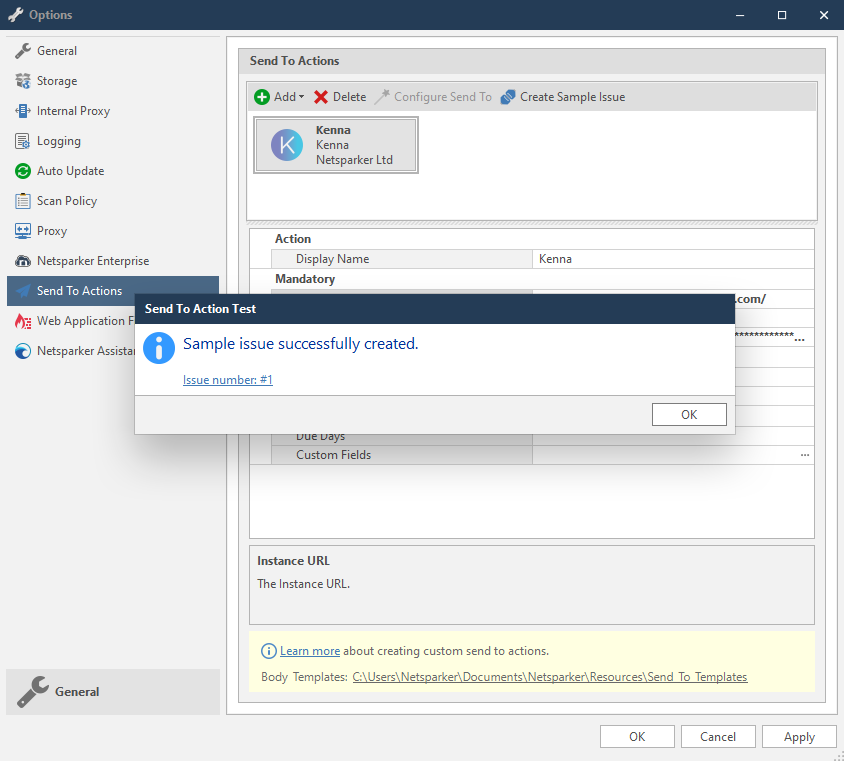
- In the Send To Action Test dialog, click the Issue number link to open the issue in Kenna in the default browser.
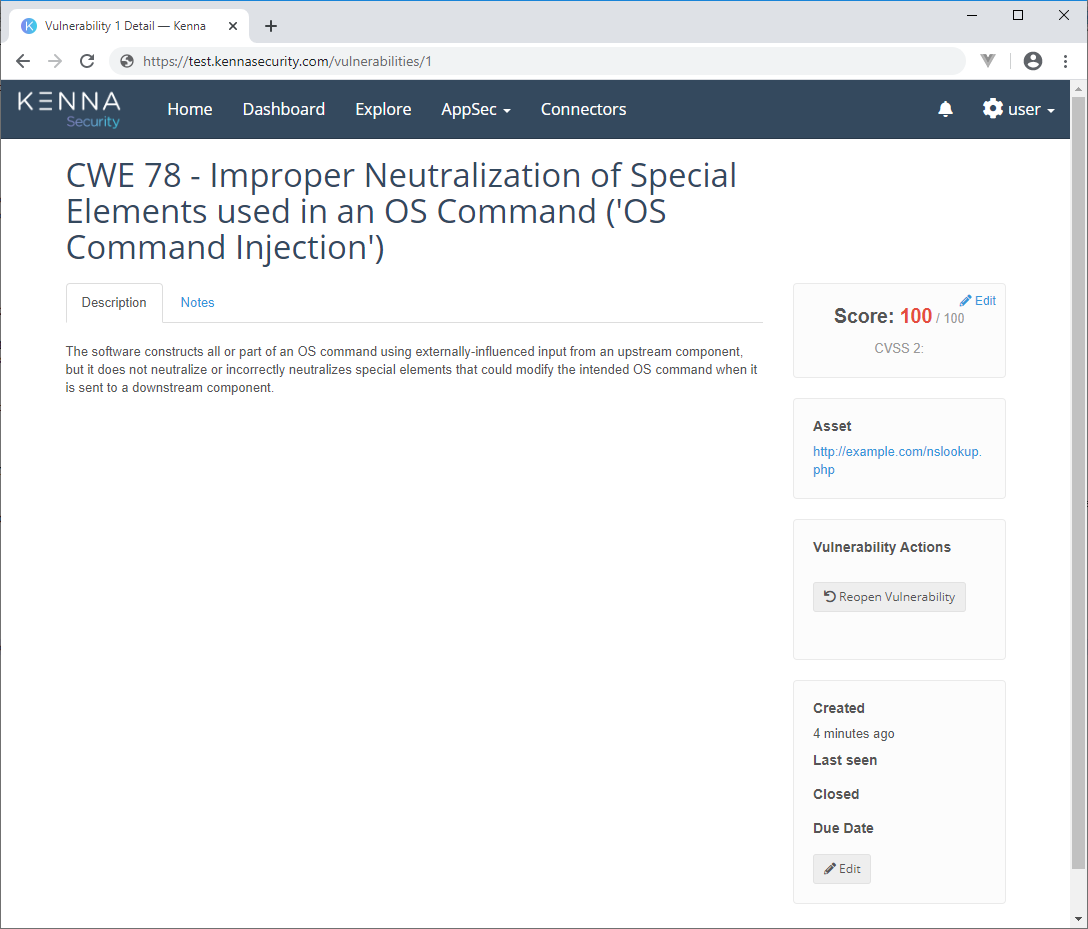
How to Export Reported Vulnerabilities to Projects in Kenna
Please ensure that you have first configured Kenna integration (see How to Integrate Invicti Standard with Kenna external documentation).
- Open Invicti Standard.
- From the ribbon, select the File tab. Local Scans are displayed. Double-click the relevant scan to display its results.
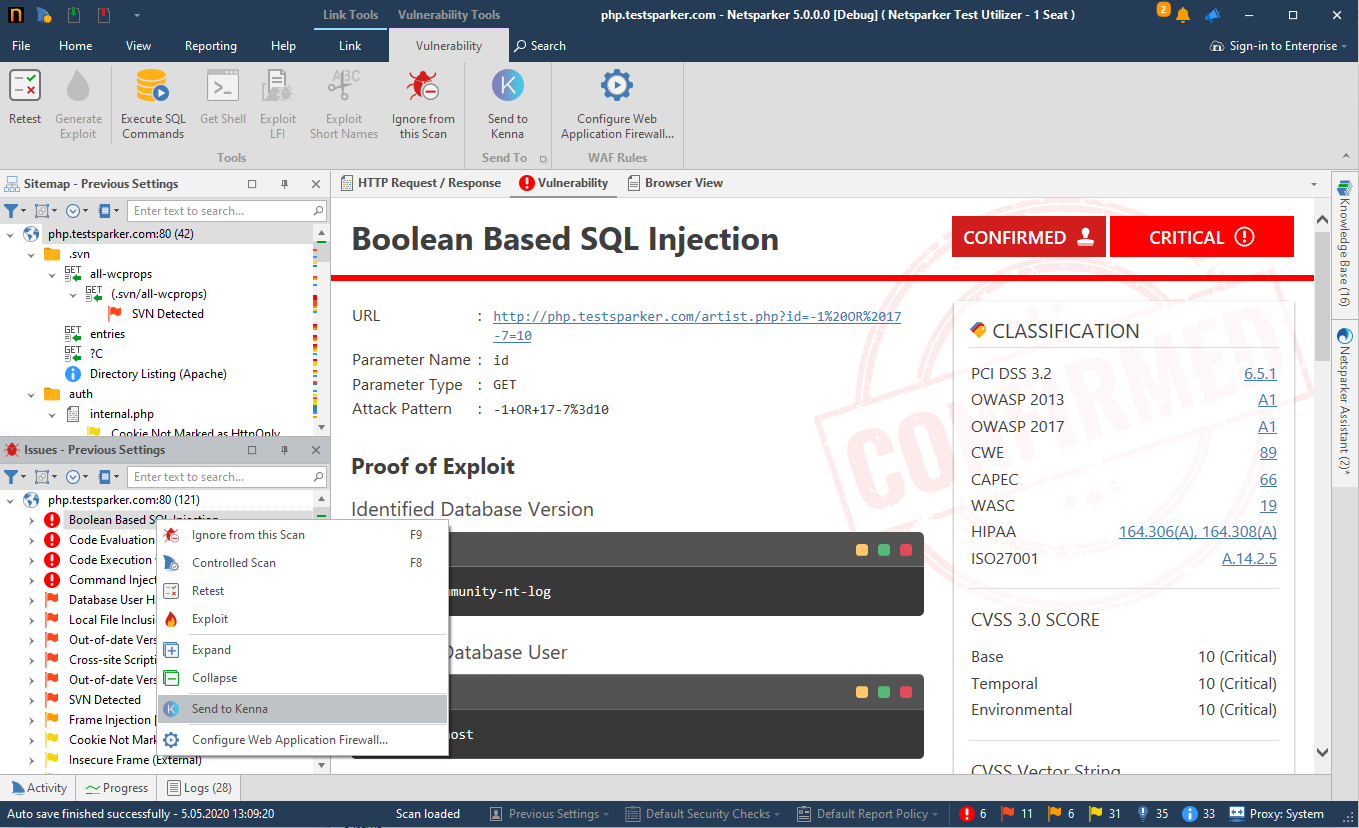
- In the Issues panel, right-click the vulnerability you want to export and select Send to Kenna. (Alternatively, from the ribbon, click the Vulnerability tab, then Send To Kenna.) A confirmation message and link are displayed at the bottom of the screen.
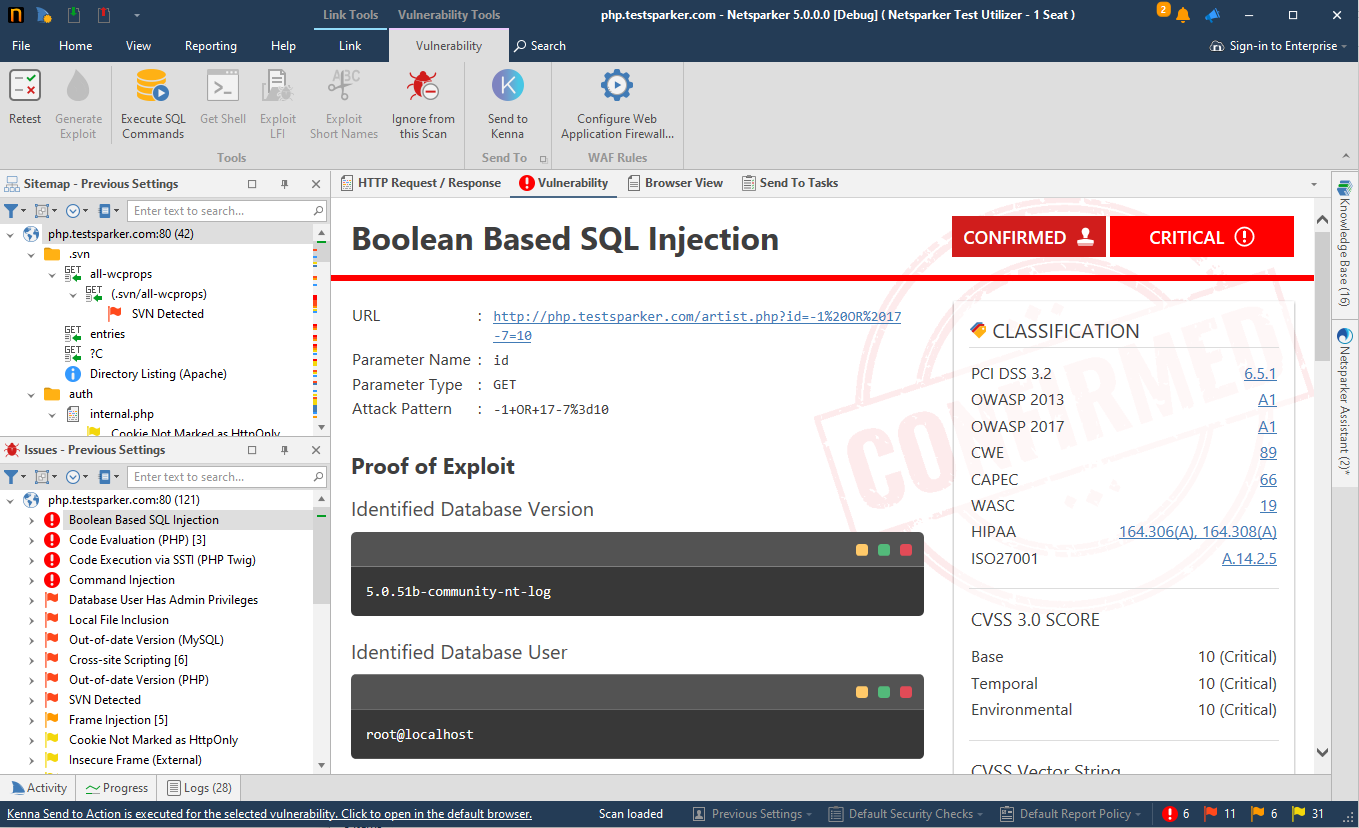
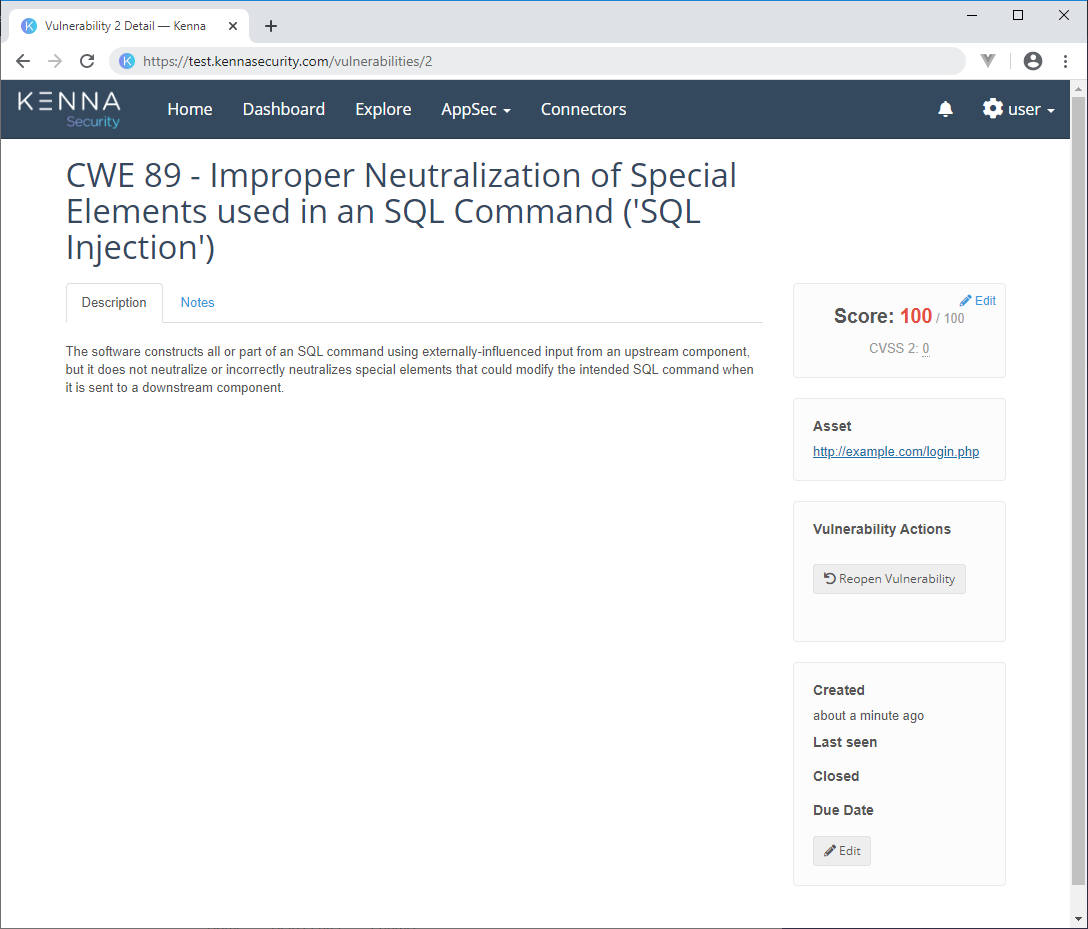
- Click the Kenna Send To Action is executed for the selected vulnerability link to view the newly-created issue in Kenna.
- The vulnerability is automatically exported to Kenna. You can view it in Kenna's Issues tab.
Need help?
Invicti Support team is ready to provide you with technical help. Go to Help Center